
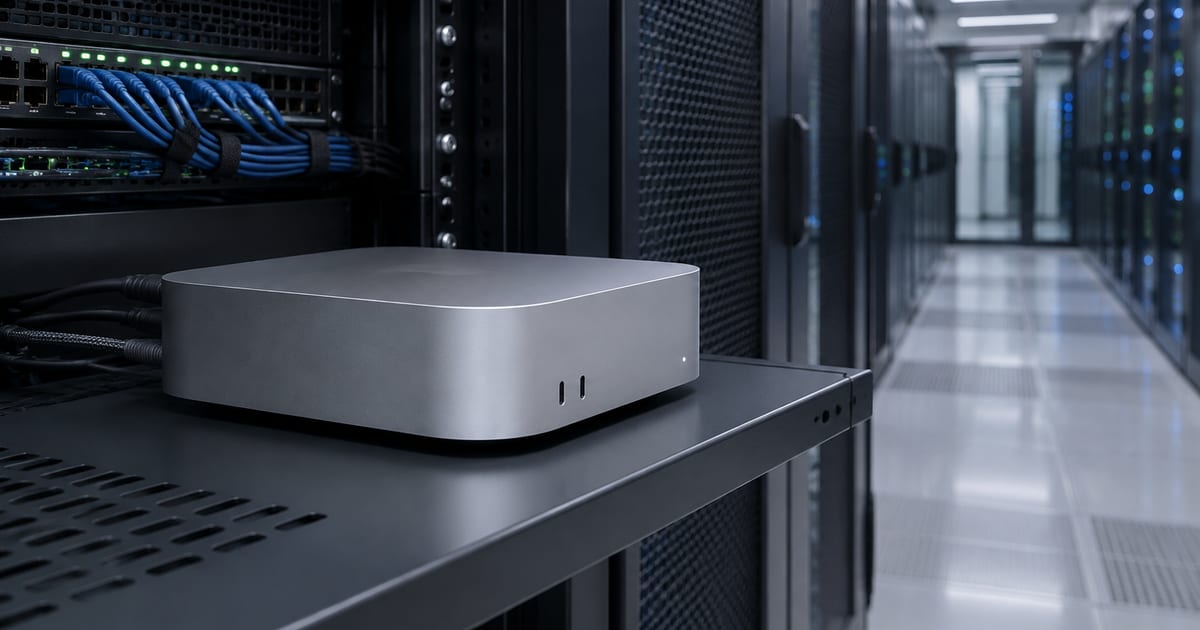

Developing an iOS application requires a suitable macOS environment and the correct development tools. Xcode provides the tools needed to build, test, and prepare applications for Apple devices. The iOS Simulator allows developers to check application behaviour without using a physical iPhone for every test. An iOS Simulator on Cloud Mac provides access to this testing environment through a remote Mac Mini.
A cloud-hosted Mac Mini is useful for developers who need remote access to macOS. Virtual Network Computing (VNC) provides a graphical desktop connection. Secure Shell (SSH) provides command-line access for remote administration. Both methods support different parts of a remote development workflow.
Understanding the Remote Development Setup
An iOS Simulator on Cloud Mac runs through Apple’s development tools on a compatible macOS system. The cloud provider supplies access to the Mac Mini. Xcode manages the simulator and application testing process.
VNC allows a developer to view the remote desktop and interact with applications through a graphical interface. SSH provides access to terminal commands without displaying the complete desktop. A stable internet connection helps maintain a reliable remote session.
The two connection methods serve different purposes. VNC suits tasks involving Xcode windows and simulator controls. SSH suits system checks and command-line operations. Combining both methods creates a practical environment for remote iOS development.
Preparing the Cloud Mac Mini
Before launching an iOS Simulator on Cloud Mac, confirm that the rented Mac Mini supports the required macOS and Xcode versions. Apple development tools have specific operating system requirements. Compatibility should be checked before beginning a project.
The next step involves installing Xcode through an approved Apple distribution channel. After installation, open Xcode and complete any required setup. Additional simulator runtimes may need to be downloaded for the intended iOS version.
Check available storage before downloading large development components. A simulator runtime can require significant disk space. Sufficient memory and processor resources also help applications run smoothly during testing.
Connecting Through VNC
VNC provides graphical access to a cloud-hosted Mac Mini. Start by obtaining the remote connection details from the hosting provider. These details normally include the server address and the required connection settings.
Open a compatible VNC client and enter the supplied address. Complete the authentication process using the authorised credentials. A successful connection displays the remote macOS desktop.
An iOS Simulator on Cloud Mac becomes easier to manage through this graphical connection. Open Xcode from the desktop and select the required project. Choose a simulator device from the available run destinations.
Press the Run control in Xcode to build the application and launch the selected simulator. The simulator window displays the application interface. Test common actions such as navigation, button responses, and screen changes.
Keep the VNC connection stable during longer testing sessions. Network delays can affect mouse movement and screen updates. A wired internet connection or reliable network may improve the remote desktop experience.
Connecting Through SSH
SSH provides terminal access to the cloud-hosted Mac Mini. Obtain the approved SSH address and account details from the hosting provider. Use a trusted SSH client and authenticate with the configured credentials.
After connecting, check the installed development tools and available system resources. Terminal access can help identify configuration problems before opening the graphical desktop.
An iOS Simulator on Cloud Mac can also be managed through Apple’s command-line development tools. Xcode includes utilities for listing available simulator devices and managing simulator states. These operations can support automated testing and remote development tasks.
For additional guidance on running applications in a simulator, refer to the official Apple Developer documentation on simulated and physical devices.
SSH does not automatically provide a graphical simulator window. The simulator interface normally requires a graphical macOS session. VNC can display that interface while SSH handles terminal-based administration.
Launching and Testing the Simulator
Once Xcode and the simulator runtime are ready, select a suitable virtual device. Different device profiles allow testing across screen sizes and supported iOS versions. The selected profile should match the application’s testing requirements.
An iOS Simulator on Cloud Mac supports several useful checks. Developers can review screen layouts, test navigation, inspect application responses, and identify visible interface problems. Simulator testing can also help detect errors before a build reaches a physical device.
Test each important application feature separately. Check form inputs, menus, loading screens, and error messages. Repeat important actions after changing application settings or source files.
However, simulation cannot reproduce every condition found on physical hardware. Camera behaviour, Bluetooth functions, certain sensors, and real device performance may require additional testing. A physical iPhone remains useful for final verification.
Managing Files and Network Settings
Remote development sometimes requires changes to local configuration files. For example, hostname resolution may affect access to development services or test environments. The guide to locating and modifying a Mac’s hosts file explains a related macOS administration task.
An iOS Simulator on Cloud Mac can connect to development services when the required network settings are configured correctly. Check the destination address, access permissions, and service availability before changing system files.
Back up important configuration files before making modifications. Incorrect settings may interrupt network access or affect other applications. Administrative changes should follow the hosting provider’s rules.
Benefits of Using an iOS Simulator on Cloud Mac
An iOS Simulator on Cloud Mac allows developers to access Apple’s testing tools from different locations. A remote Mac Mini provides a dedicated macOS environment for building and checking applications. This setup can reduce the need to purchase additional Mac computers for every development task.
The iOS Simulator on Cloud Mac also supports flexible testing arrangements. Developers can connect through VNC when a graphical interface is needed. SSH provides another option for managing the remote system and performing command-line tasks.
Improving the iOS Simulator on Cloud Mac Workflow
A smooth iOS Simulator on Cloud Mac workflow starts with a properly configured Xcode installation. Selecting the correct simulator device helps prevent unnecessary testing delays. Keeping project files organised also makes development tasks easier to manage.
For better performance, close applications that are not required during testing. Monitor available storage and memory when running larger projects. These practices help the iOS Simulator on Cloud Mac remain responsive during regular development sessions.
Troubleshooting Common Problems
An iOS Simulator on Cloud Mac may experience slow performance, startup failures, or connection interruptions. Start by checking the network connection and available server resources. Restarting the simulator may resolve temporary problems.
If a simulator device is missing, check the installed runtimes and Xcode configuration. An outdated development environment may not support the selected device profile. Installing the required runtime can restore the missing option.
If VNC disconnects frequently, review the connection settings and network stability. If SSH authentication fails, verify the account permissions and approved access method. Avoid sharing passwords or exposing remote access services unnecessarily.
Security and Good Practices
Remote access should use strong authentication and restricted permissions. SSH keys can provide an alternative to password-based authentication when supported by the provider. VNC access should remain protected by suitable security controls.
An iOS Simulator on Cloud Mac should be used with clear file management practices. Store project files in organised directories and maintain regular backups. Remove temporary builds when storage becomes limited.
Keep macOS and development tools updated when project compatibility allows. Test updates before using a new environment for important development work. Record working configurations to simplify recovery after unexpected changes.
Final Testing Considerations
Before releasing an application, use the iOS Simulator on Cloud Mac to review important screens and common user actions. Check for layout problems and unexpected application behaviour. Record any errors and repeat the affected tests after making corrections.
The iOS Simulator on Cloud Mac is a useful part of the development process, but it should not replace every physical-device test. Combining remote simulation with real-device checks provides a more complete view of application quality.
Conclusion
Using an iOS Simulator on Cloud Mac gives developers a practical way to test iOS applications without relying entirely on a personal Mac. VNC supports graphical interaction with Xcode and the simulator. SSH supports command-line administration and automation.
A properly configured cloud-hosted Mac Mini provides a useful remote development environment. Suitable system resources, secure access, and regular testing help maintain a reliable workflow. Physical-device testing remains important for checking features that simulation cannot fully reproduce.