
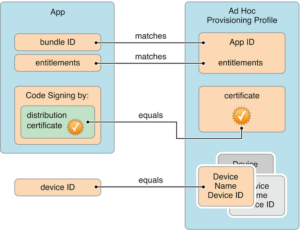
Preparing an iOS application ona remote Mac involves more than installing Xcode. Each build must use the correct signing identity and provisioning settings before testing or distribution. Code Signing Certificates help confirm the developer identity attached to an application. A provisioning profile defines which signing identities, app identifiers, devices, and permissions are allowed for a particular purpose.
Remote access also makes secure storage and careful account management important. Code Signing Certificates need the same protection as other release credentials. A consistent process for handling signing assets can reduce failed builds and help protect release files.
Understand Certificates and Provisioning Profiles
Code Signing Certificates identify a signing identity used during the build process. The certificate works with a private key, which is commonly stored in the macOS keychain. A certificate file without its matching private key cannot complete the signing process. Keep Code Signing Certificates paired with the correct private key.
A provisioning profile links an application identifier with approved signing information. Depending on the profile type, it may also list registered devices and permitted capabilities. Apple explains these details in its provisioning profile documentation. A profile must match the application and signing setup for the intended task.
Prepare the Remote macOS Server
Before installing Code Signing Certificates, confirm that the remote Mac runs a suitable version of macOS and a compatible version of Xcode. Prepare the server before adding Code Signing Certificates.
Each team member should have an individual account where possible. Avoid sharing one login across an entire development team because shared credentials make access harder to review.
A suitable signing identity may already exist from an earlier setup. Reviewing the current configuration helps prevent duplicate identities and unnecessary replacements. This check keeps Code Signing Certificates organized.
Install and Maintain Certificates
Code Signing Certificates should come from the relevant Apple Developer account or an approved team workflow. The selected development team must match the project configuration.
If a signing identity needs to move to a remote Mac, export it with its private key using a protected file. After import, confirm that the certificate and private key appear together in the keychain.
Never store private keys in public folders or include signing files in source control. A short inventory should record the certificate purpose, owner, expiry date, and associated project. Clear records make Code Signing Certificates easier to maintain.
Keep Provisioning Profiles in Sync
Provisioning profiles must match the app identifier and the intended signing method. The correct choice depends on the platform and delivery method.
When Code Signing Certificates change, check every related provisioning profile. An existing profile may still refer to an older certificate or outdated app settings. Update or regenerate the profile when needed, then verify that the profile matches the selected team and bundle identifier.
Manual signing offers more direct control but requires extra checks whenever certificates, devices, or app capabilities change. Keep the chosen method consistent across the project to avoid confusing build settings. Consistency helps Code Signing Certificates work with the intended profile.
Protect Signing Assets on Remote Servers
Remote servers need strong access controls because signing assets can be used to prepare applications for release. Protect administrator accounts with strong passwords and multi-factor authentication where available. Restrict SSH and remote desktop access to approved users and trusted networks.
Code Signing Certificates and private keys should never be sent through public links or unsecured messaging services. Store backup exports in encrypted storage and keep the password separate from the file.
Routine testing should not require broad access to distribution credentials. This approach limits the damage that could result from an exposed account or accidental change. Protecting Code Signing Certificates is part of release security.
Resolve Signing Errors
Expired certificates and invalid profiles can stop a build from completing. When an error appears, check the certificate expiry date, private key availability, profile status, bundle identifier, team selection, and required capabilities.
Code Signing Certificates should not be revoked simply because a build fails. First identify the cause and confirm whether the identity is still valid. Revocation may affect other projects that rely on the same certificate. Replace a compromised or unusable identity through an approved process and update associated profiles.
After making a change, run a test build before starting a production release. This record can help shorten future troubleshooting and prevent the same problem from returning. Routine checks keep Code Signing Certificates ready for use.
Backups and Routine Reviews
Keep encrypted copies of required signing identities and relevant profiles in a restricted location.
Review Code Signing Certificates before major release dates and after changes to the development team. Check profiles whenever the app identifier, registered devices, or required capabilities change.
The Mac Task Manager App guide offers related information about organising tasks on macOS. A regular checklist makes certificate maintenance easier to repeat across projects. It also keeps Code Signing Certificates from being overlooked.
Conclusion
Managing Code Signing Certificates on remote macOS servers requires secure installation, controlled access, profile updates, and routine testing. Each signing identity must remain available to authoriZed staff without exposing its private key unnecessarily.
With protected backups, timely reviews, and clear responsibilities, a remote Mac can provide a dependable environment for iOS and macOS development.