
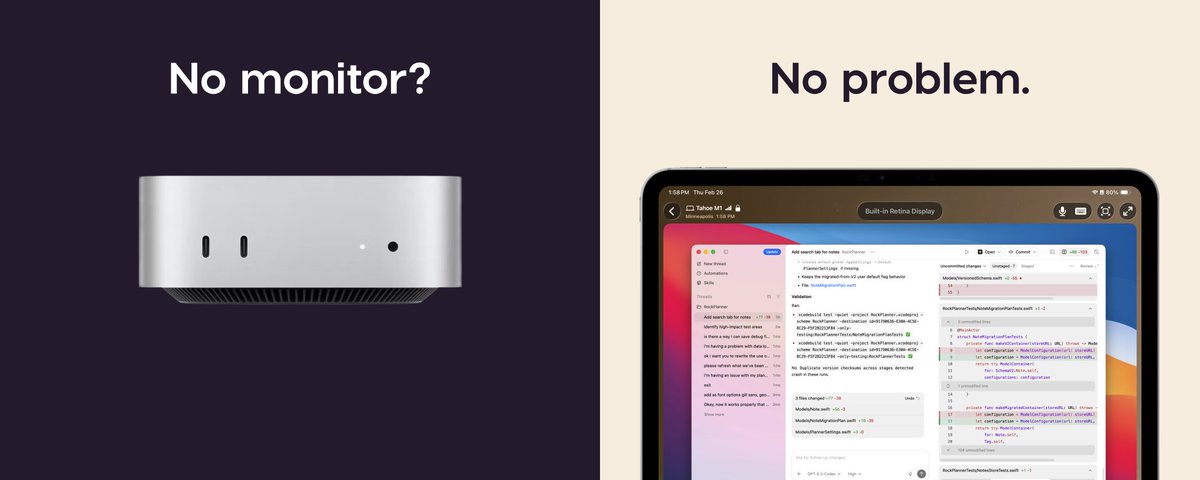

Developing an iOS application requires a reliable environment for writing code, building projects, and finding errors. Xcode provides useful tools for checking application behavior and identifying problems during development. A local computer can handle everyday coding tasks while a remote Mac Mini manages demanding build processes. This arrangement separates coding activities from compilation work.
Learning to Debug iOS Apps in this environment requires a clear workflow. Local debugging helps identify problems quickly. Remote builds provide access to macOS hardware and Xcode without requiring a dedicated Mac for every workstation. A stable connection and organized project files make development easier to manage.
Understanding Local Debugging and Remote Builds
Local debugging involves examining application behavior on a developer’s computer or connected testing device. Breakpoints, console messages, and variable inspection help identify the cause of unexpected results. Remote builds involve compiling source files on another Mac through a network connection.
A remote Mac Mini provides the macOS environment needed for compiling and signing an iOS application. Local tools support code editing and project review. The debugging method depends on the local operating system, available development tools, and connection to the remote machine.
To Debug iOS Apps successfully, the local and remote environments must use compatible project settings. Matching Xcode versions, SDK requirements, and dependency versions reduces unexpected build errors. A consistent configuration also makes problems easier to reproduce.
Preparing the Remote Mac Mini
The first step is preparing the remote Mac Mini with a supported macOS version and the required Xcode release. The project should use compatible SDKs and dependencies. Developer account access may also be required for signing applications and installing builds on registered devices.
Remote access can use a secure screen-sharing connection or an approved remote development service. SSH supports command-line tasks and basic administration. Screen sharing provides access to Xcode’s graphical interface when direct interaction with debugging tools is necessary.
Before attempting to Debug iOS Apps, confirm that the remote Mac Mini can compile the project without errors. Check available storage and network stability. Confirm that certificates and provisioning profiles are valid for the intended testing environment.
Setting Up a Local Debugging Workflow
A practical workflow begins with source code stored in a version-controlled repository. Git helps track changes and makes it easier to compare a working version with a version that contains errors. The same commit should be available on the local workstation and the remote Mac Mini.
When developers Debug iOS Apps, project consistency is important. Different source revisions can produce confusing results because local code may not match the code used in a remote build. Record the commit identifier and build configuration before testing.
Next, configure the remote build process. Xcode can compile the project on the remote Mac Mini through its graphical interface. Command-line build tools can also support automation. Build logs should be retained because warnings and errors often reveal the reason for a failed compilation.
Using Xcode Debugging Tools
Xcode includes several tools for investigating application problems. Breakpoints pause execution at selected lines. The debugger displays variable values and helps trace application logic. The console shows messages that can reveal failed requests, incorrect values, or unexpected application states.
These features help Debug iOS Apps by narrowing a problem to a specific part of the project. Conditional breakpoints are useful when an error appears only under certain conditions. Logging provides additional details when a problem occurs during a longer operation.
Apple’s official debugging documentation explains available debugging features and related workflows. Reviewing this documentation helps developers choose suitable tools for different problems.
Managing Network Connections and Hosts Files
Network settings can affect applications that connect to development servers, test APIs, or staging environments. Incorrect DNS records or hosts file entries may direct a request to the wrong address. A failed connection can therefore appear to be an application error even when the code is correct.
When developers Debug iOS Apps, checking the network configuration is a useful troubleshooting step. The Mac hosts file can map a hostname to a specific IP address. An incorrect entry may cause connection failures or prevent access to the intended service.
The guide to locating and modifying a Mac’s hosts file explains how to inspect this configuration. Changes should be documented and reversed when no longer required. Production services should not be redirected without proper authorisation.
Testing on a Physical iPhone or Simulator
A simulator provides a convenient way to test application screens and basic interactions. It supports rapid checks without requiring a physical device for every test. However, simulator behavior may differ from actual hardware in areas such as camera access, performance, notifications, and certain device features.
Physical device testing is valuable when developers Debug iOS Apps that depend on hardware capabilities. A connected iPhone can reveal permission issues, performance problems, and behavior that does not appear in a simulator. Device registration and signing settings must be configured correctly.
A remote build does not automatically provide local access to every connected device. The testing arrangement must support installation and debugging through an appropriate connection. Device access, network permissions, and security settings should be checked before testing begins.
Solving Common Remote Development Problems
Build failures often result from missing dependencies, incompatible SDKs, expired certificates, or incorrect configuration settings. Build logs provide useful evidence for identifying the source. Reviewing the first relevant error is often more effective than changing several settings at once.
Connection problems require a separate investigation. Slow transfers may indicate network congestion. An unreachable remote Mac Mini may require checks of remote access settings, firewall rules, or service availability.
To Debug iOS Apps efficiently, change one setting at a time and repeat the same test. This approach makes it easier to identify which change resolved the problem. Build records and clear error notes also help prevent repeated troubleshooting.
Improving Security and Performance
Remote development requires careful management of credentials and source code. SSH keys, strong authentication, and restricted network access help protect the remote Mac Mini. Certificates and provisioning profiles should remain accessible only to authorized accounts.
Developers can Debug iOS Apps more efficiently by keeping build outputs separate from source files and removing unnecessary temporary data. Adequate storage helps prevent interrupted builds. A stable network also improves file transfers and remote desktop responsiveness.
Automated builds can reduce repeated manual tasks. A build pipeline can compile the project and report failures before a release candidate is prepared. Testing should still include appropriate device checks and review of application behaviour.
Practical Workflow for Better Results
A consistent workflow helps developers Debug iOS Apps without repeating the same checks. Start by reproducing the error locally. Record the affected feature and review the console output. Compare the source files with the version used by the remote Mac Mini.
When a build fails, developers should Debug iOS Apps by reviewing the earliest relevant error. Correct the identified issue before starting another build. This method reduces unnecessary compilation and makes troubleshooting more organized.
Before testing a new build, confirm that the correct application version is installed. Developers can Debug iOS Apps by checking device logs and repeating the steps that caused the original problem. Clear records make it easier to compare results across different builds.
Conclusion
Local coding and remote compilation provide a flexible development arrangement. A remote Mac Mini supplies a suitable macOS build environment while local tools support code review and troubleshooting. Reliable project synchronization, secure access, and clear build records are essential for consistent results.
A structured process helps Debug iOS Apps without wasting time on unrelated configuration problems. Compatible Xcode settings, useful debugging tools, and realistic device testing improve development quality. Careful network checks and secure remote access also help maintain a dependable workflow for future iOS projects.