Utilizing a Custom Kernel on Your Ubuntu VPS
Choose a kernel
Selecting a Kernel from http://mirrors.kernel.org/ubuntu/pool/main/l/linux/[1]. For this tutorial, we choose the latest available version, which is 4.14.0-11-generic.
Install and download
Commands starting with # indicate that you need to run them with root privileges. Depending on your preference, you can use either sudo or su -c.
For 64bit installation:
$ wget http://mirrors.kernel.org/ubuntu/pool/main/l/linux/linux-image-4.14.0-11-generic_4.14.0-11.13_amd64.deb
# dpkg -i linux/linux-image-4.14.0-11-generic_4.14.0-11.13_amd64.deb
For 32bit installation:
$ wget http://mirrors.kernel.org/ubuntu/pool/main/l/linux/linux-image-4.14.0-11-generic_4.14.0-11.13_i386.deb
# dpkg -i linux/linux-image-4.14.0-11-generic_4.14.0-11.13_i386.deb
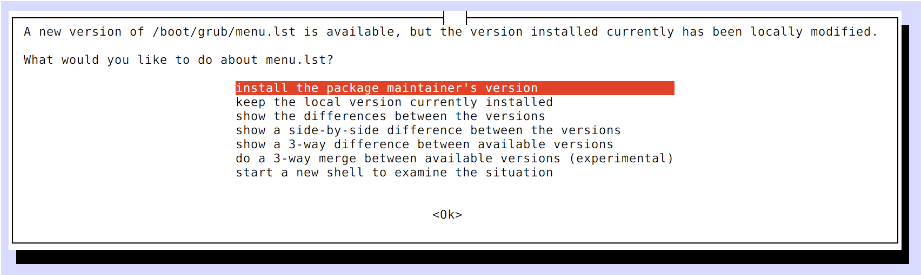
Note: If a prompt box appears with the message “A new version of /boot/grub/menu.lst is available,” be sure to choose “install the package maintainer’s version.” Failing to do so may prevent you from updating grub.lst automatically.

This approach is specific to blendhosting.com’s Ubuntu templates and may not be applicable if you are using services from other providers.
Update grub
Execute the following command:
# grub-set-default "Ubuntu, with Linux 4.14.0-11-generic"
# update-grub Install extra modules
If you plan to use Docker or NFS, you may want to install additional kernel modules. Execute:
For 64bit installation:
$ wget http://mirrors.kernel.org/ubuntu/pool/main/l/linux/linux-image-extra-4.14.0-11-generic_4.14.0-11.13_amd64.deb
# dpkg -i linux-image-extra-4.14.0-11-generic_4.14.0-11.13_amd64.deb
For 32bit installation:
$ wget http://mirrors.kernel.org/ubuntu/pool/main/l/linux/linux-image-extra-4.14.0-11-generic_4.14.0-11.13_i386.deb
# dpkg -i linux-image-extra-4.14.0-11-generic_4.14.0-11.13_i386.deb Restart
Restart your system, and the changes will be applied!