

You are here:
  • KB Home
  • apache
  • Setting up a Debian 8 server with the LAMP (Linux, Apache, MySQL, and PHP) stack

Setting up a Debian 8 server with the LAMP (Linux, Apache, MySQL, and PHP) stack

Setting up a Debian 8 server with the LAMP (Linux, Apache, MySQL, and PHP) stack

Overview

What is a LAMP server?

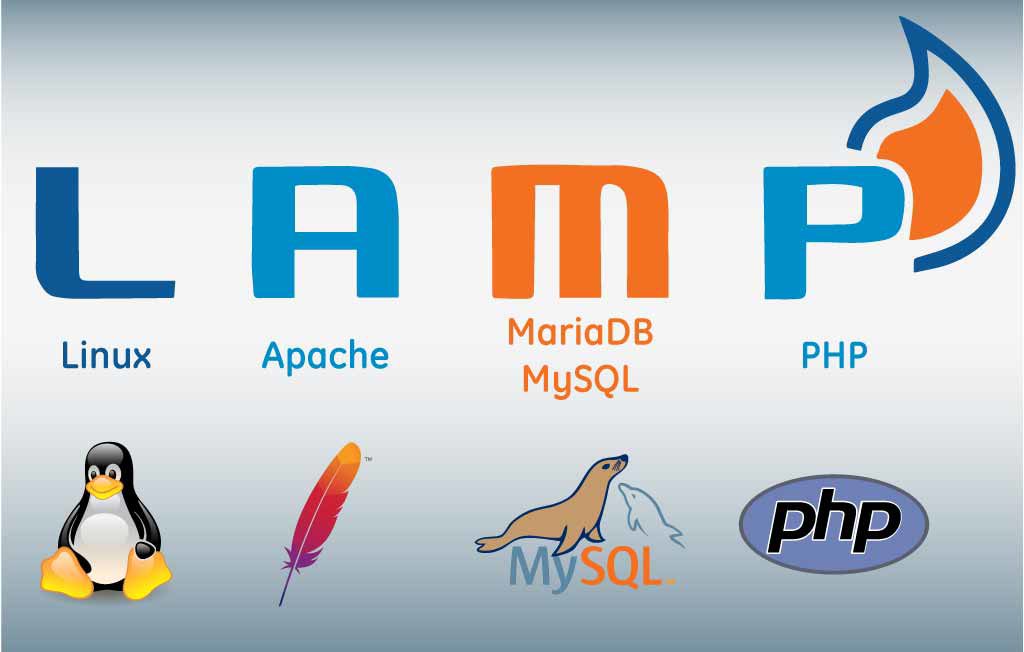
Essentially, a server equipped with Apache, MySQL, and PHP constitutes a LAMP (Linux, Apache, MySQL, PHP) stack. This configuration is responsible for serving websites and web applications to the public. It operates behind the scenes of every website you visit, every app you open on your phone, laptop, desktop, and even your TV.

A LAMP server processes and serves data for your phone applications, handling information displayed in your desktop applications. In essence, a web server with a LAMP stack can be considered a fundamental component of the internet.

This guide will walk you through the installation and configuration of a LAMP server based on Debian 8.

Requirements

The tutorial assumes the following:

  1. You possess a Debian 8 VPS server from blendhosting.com.
  2. You have an available SSH terminal.
  3. You have an open command prompt.
  4. You possess basic knowledge of Debian or Linux commands.

Apache Installation Guide

The Apache web application is an open source programme that enables your server to show user-requested online content. Additionally, it serves web applications and data needed by desktop and mobile applications.

We must update our Debian installation first. To accomplish this, execute the following command:

sudo aptitude safe-upgrade

A secure upgrade has been performed to update the existing software on your Debian 8 installation.

Following the upgrade, the next step is to install the Apache server.

sudo aptitude install apache2 apache2-doc

The provided command will install the essential configuration for our Apache web server and include the latest documentation for Apache.

To confirm a successful Apache installation, open your web browser and enter your server’s IP address. You should observe the following webpage:

apache start page

Understanding the IP address of your server

To obtain your IP address, execute the following command:

/sbin/ifconfig eth0'

Executing the ifconfig command will display a list of available network interfaces on the VPS server. The server’s IP address can be identified directly following the “inet addr” entry.

$ /sbin/ifconfig eth0
eth0 Link encap:Ethernet HWaddr 8c:70:5a:92:f6:e0
inet addr:10.1.1.78 Bcast:10.255.255.255 Mask:255.0.0.0
inet6 addr: fe80::8e70:5aff:fe92:f6e0/64 Scope:Link
UP BROADCAST RUNNING MULTICAST MTU:1500 Metric:1
RX packets:24557 errors:0 dropped:0 overruns:0 frame:0
TX packets:18095 errors:0 dropped:0 overruns:0 carrier:0
collisions:0 txqueuelen:1000
RX bytes:17493073 (17.4 MB) TX bytes:3226275 (3.2 MB)

Based on the provided example, the IP address of your server is identified as 10.1.1.78.

Mysql Installation Guide

After confirming that Apache is up and running, we can proceed with the installation of our MySQL server.

MySQL servers store essential information from your website in a file known as a database. This database comprises tables, each containing rows and columns of data retrievable by our webpage for display to users or for use by an application.

To install the MySQL server, execute the following commands:

sudo aptitude install mysql-server php5-mysql

Throughout the installation, the server will prompt you to choose and verify your administrator or root password. This root password becomes essential when adding or modifying the database and MySQL server configuration. Ensure the password is robust, incorporating uppercase, lowercase, and alphanumeric characters.

Following the installation, execute the subsequent script to fortify your MySQL server installation. This process will restrict access to the server, mitigating potential security and performance concerns.

sudo mysql_secure_installation

During the configuration, you’ll be prompted for the root password you entered earlier. It will inquire whether you wish to change this password. If you are content with your password, you can skip this step by pressing ENTER for the remaining questions.

To verify if the MySQL server is running, log in to the MySQL server using:

mysql -u root -p

And enter your root password then run the following command:

mysql> status

Now that your database and Apache server are up and running, we can proceed with installing PHP.

PHP Installation Guide

PHP is a software that processes dynamic content for your webpage. Depending on your requirements, it can communicate with our MySQL server to deliver real-time, dynamic results and data to users.

PHP is commonly used to provide information on user accounts, traffic updates, location information, and more. To install PHP, execute the following commands:

sudo aptitude install php5-common libapache2-mod-php5 php5-cli

The provided command will install PHP. We will conduct tests later to ensure that our configuration and installation are functioning correctly.

Adding additional PHP components

To enhance the capabilities of PHP further, you have the option to install additional modules. Adding modules may be necessary for your application or webpage.

Enter the following commands to see whether there are any modules available:

apt-cache search php5-

The available modules will be displayed to you as shown below:

php5-dev - Files for PHP5 module development
php5-gd - GD module for php5
php5-common - Common files for packages built from the php5 source
...

To obtain information about what a module does, you can use the following command with the module’s name. Alternatively, you can also search for information on the internet.

apt-cache show php5-gd

To install a module, you can execute the following command:

sudo aptitude install php5-gd

To install multiple modules, simply include them in the existing command:

sudo aptitude install php5-gd php5-common

PHP testing

To verify the functionality of our PHP installation and ensure that all installed modules are properly configured, we need to create a PHP file containing our PHP information.

To do this, create a file named info.php in the /var/www/html directory.

sudo nano /var/www/html/info.php

Open the file, and insert the following PHP script:

<?php
phpinfo();
?>

Close and save the file. Open your web browser after that, and type in the filename we just made, followed by your server’s IP address.

http://your_server_IP/info.php

The page below should appear on your screen.The content on your PHP information page may differ from mine due to variations in installed modules on your server. The essential point at this stage is to ensure that your page is accurately processing PHP information.

PHP 5 information page


Now that your LAMP server on Debian 8 is fully set up and configured, you can proceed to install the applications you need. If you have any questions or suggestions, feel free to leave a comment below.

Was this article helpful?
Dislike 0