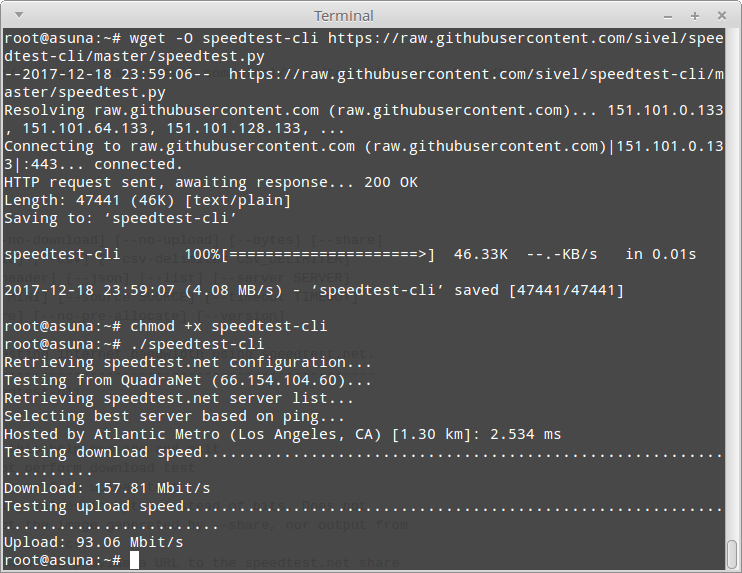
Indeed, it’s simple and easy!
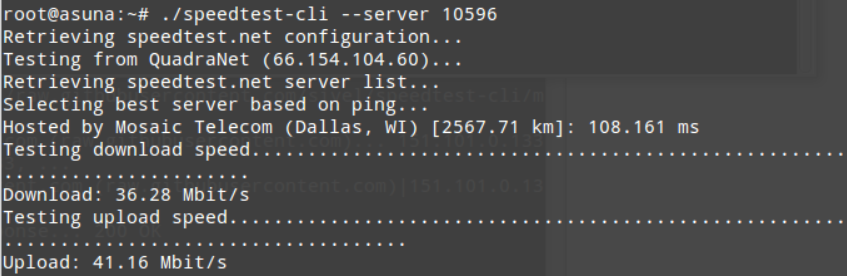
You can even specify the Speedtest location you desire. For example, let’s say you want to test the connection speed between Dallas and Los Angeles.
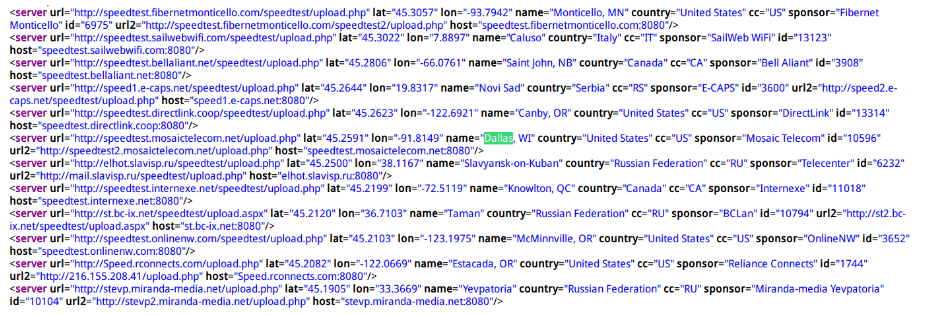
Visit this webpage: http://www.speedtest.net/speedtest-servers-static.php[1] and use Ctrl+F to search for the location “Dallas”.
Note: If your browser shows a blank page, try using Firefox or a similar browser that supports viewing PHP files.
Remember the ID number associated with Dallas; it will be used later. For example, if the ID for Dallas is 10596, take note of this number.