You are here:

Setting Up and Accessing Remote Windows VPS Using RDP

Setting Up and Accessing Remote Windows VPS Using RDP

Overview

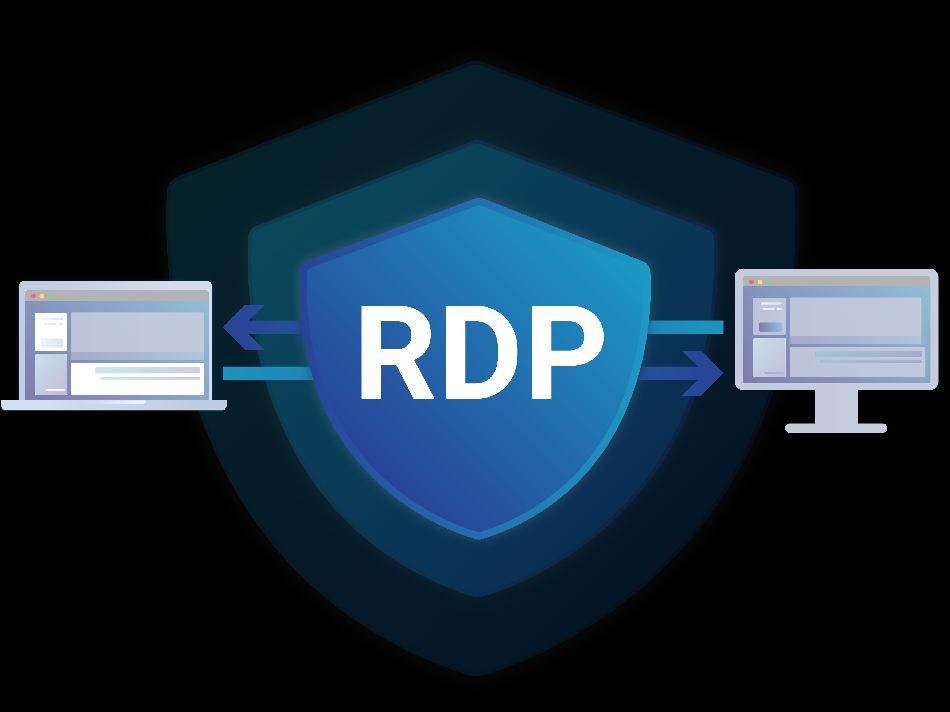
RDP (Remote Desktop Protocol) serves as a Windows-based protocol designed to facilitate graphical interface connections to another (virtual) computer over the internet. Effortlessly connect to a computer from your own location.

Requirements

RDP servers are integrated into the Windows operating system, and there is also an open-source RDP server available for Linux. Typically, RDP ports are TCP/UDP 3389.

RDP Connection Enabled

On a Windows machine, RDP may be enabled by default; however, there are instances where it could be turned off by another application. In such cases, configuration is necessary to activate it for use. To enable RDP, follow the steps below:

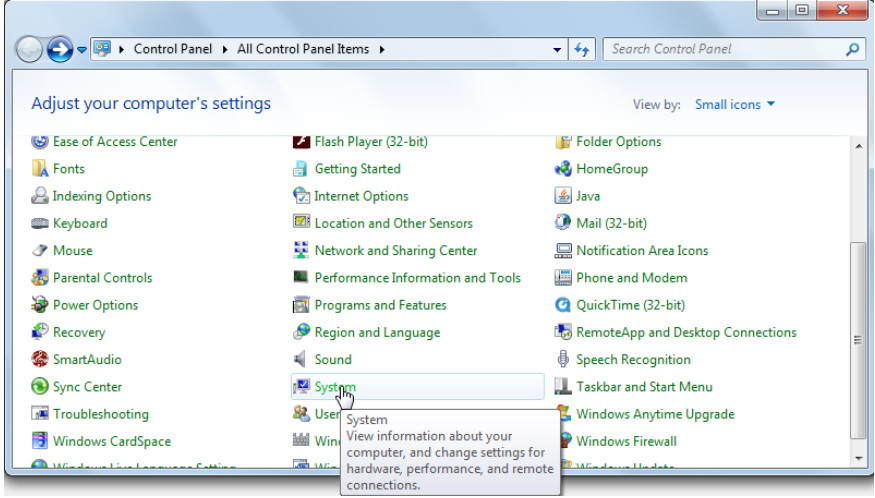
  1. In the Control Panel, click on System.
Steps to enable RDP connection in Windows

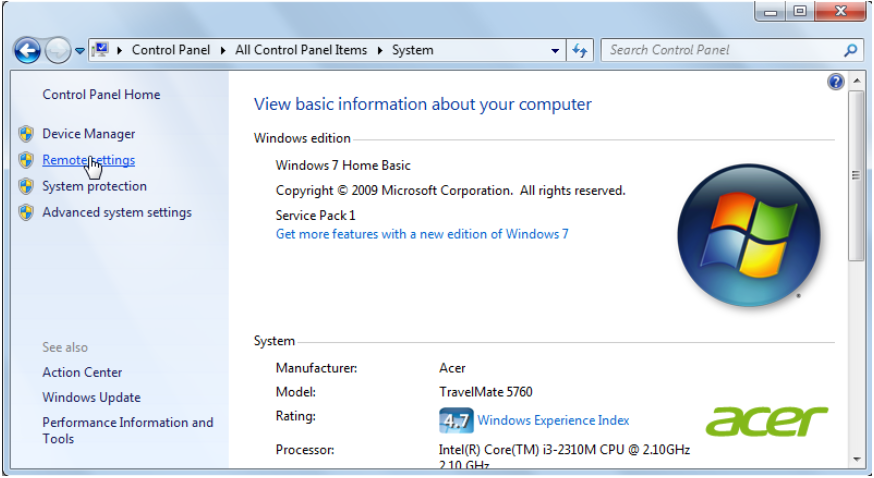
       2. Subsequently, click on ‘Remote Settings‘ in the left menu.

Select 'Remote Settings' to accessing remote settings in Windows for connection

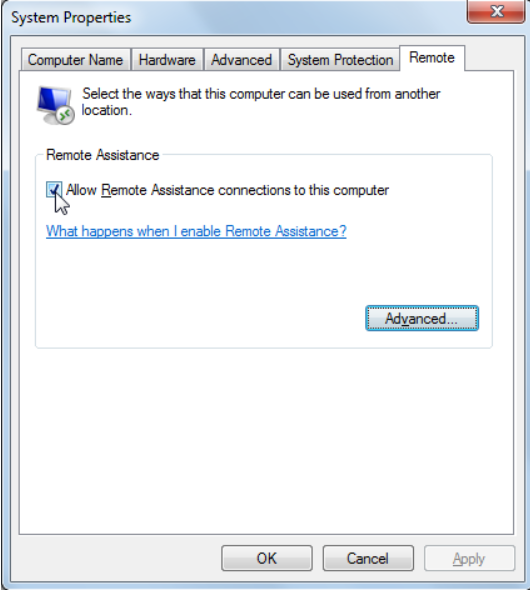
       3. Enable the option that says Allow Remote Assistance connection to this computer.

Enable Remote Assistance connection and access settings in Windows.

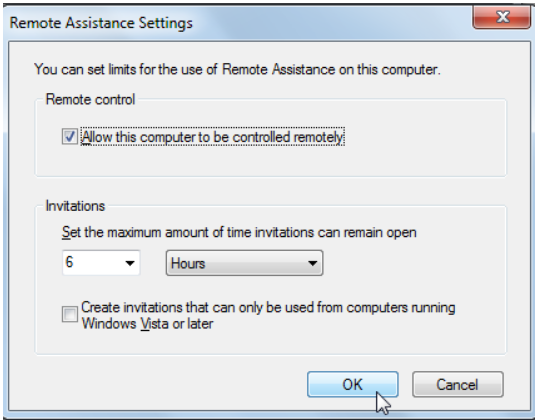
       4. Click on the ‘Advanced‘ button, and a new window will appear.

       5. Check the box that says ‘Allow this computer to be controlled remotely‘ and click ‘OK.’

Tick 'Allow this computer to be controlled remotely'

Establishing RDP to Another Machine

To initiate a connection to another machine using RDP, follow these steps:

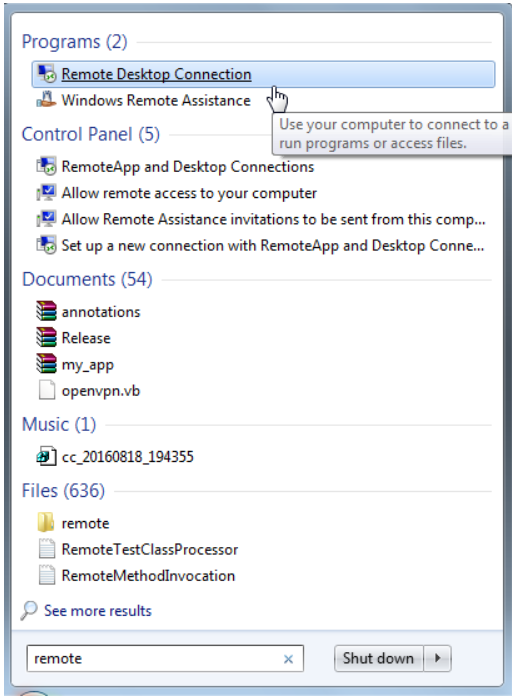
  1. Click on ‘Start,’ then search for ‘Remote Desktop Connection.’ Once located, click on it to open the RDP window.
Search for ‘Remote Desktop Connection.’ Once located, click to open the RDP window

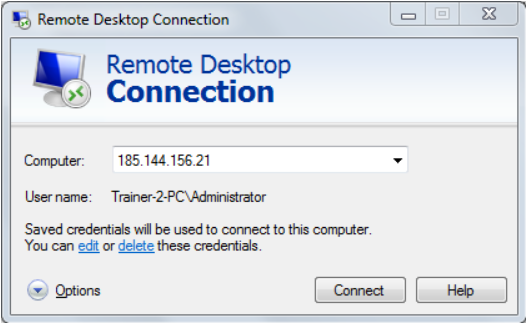
       2. Input the domain name or IP address of the remote machine you wish to connect to.

Input domain name and IP address of remote machine

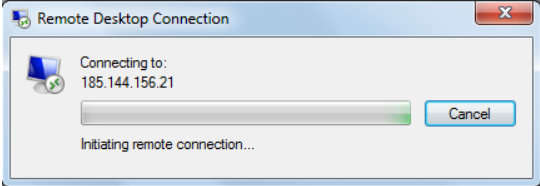
       3. Click on ‘Connect’ and wait for the connection to be established.

Establishing Remote Connection and Control

You are now successfully connected to the remote computer, granting you the ability to control it remotely.

In this tutorial, we covered the steps to configure and enable RDP on a Windows machine, as well as how to connect to a remote computer. I hope you find this tutorial helpful, and if you have any comments, please feel free to share them below.


Was this article helpful?
Dislike 0