MetaTrader Installation on Windows 2008 Server
Overview
What is Metatrader?
MetaTrader is a software developed by MetaQuotes Software for online trading. It is extensively used by retail exchange traders and serves as a client to a server typically operated by a brokerage firm. The brokerage firm uses the software to provide clients with real-time market status, price charts, indicators, and to manage and place orders. MetaTrader is an extensible software, enabling clients to run scripts and robots to automate trading and stock updates.
There are two versions of the software: MetaTrader 4 and MetaTrader 5. While the 5th version is newer, MetaTrader 4 remains the most widely used. Although the installation steps are similar for both versions, in this tutorial, we will install MetaTrader 5, the latest of the two.

Requirements
You possess a Windows 2008 Server from blendhosting.com. If not, you can order a new plan at Blend Hosting. Their pricing is highly competitive compared to others, and typically, the construction of the Windows server itself is completed relatively quickly.
Additionally, you have a Remote Desktop Client for Windows. If you are on Linux or Mac, you can explore other remote clients available for your platform. For Linux, options include RealVNC Viewer, Remmina, TeamViewer, or TigerVNC. For Mac, you can download Microsoft Remote Desktop Client.
IE Security Disabling Temporarily
Every Windows server comes prepared with overly secure Internet Explorer (IE) security settings. These settings block access to many websites and provide notifications for any links you attempt to visit.
To adjust these settings, follow these steps:
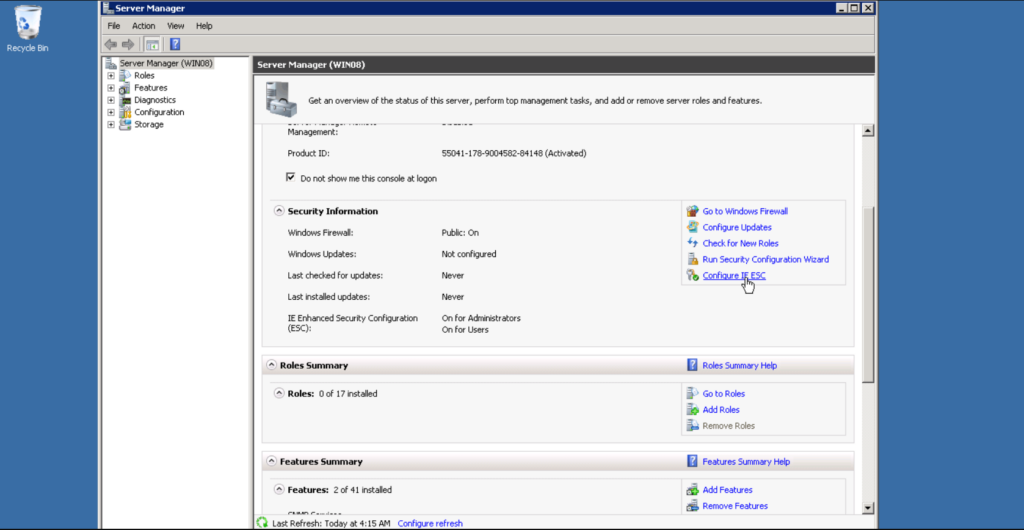
First, click on Start and search for Server Manager. Click on it to open the window.
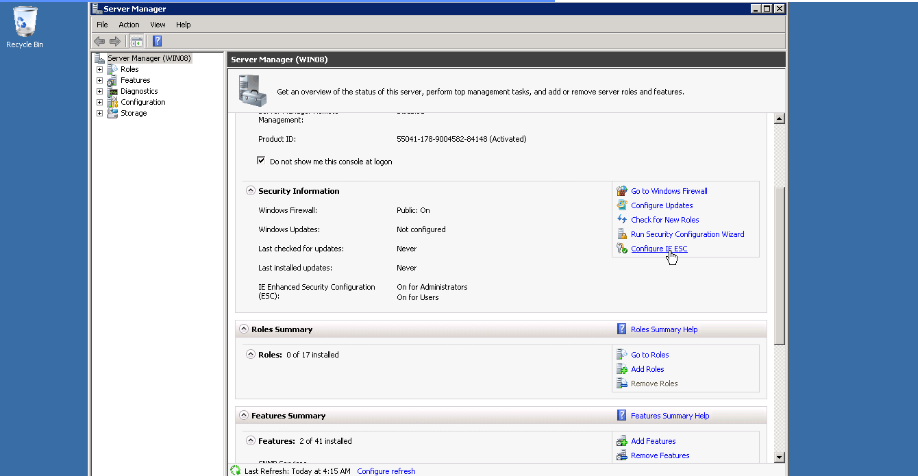
Once you are on the Server Manager, click on Configure IE ESC.
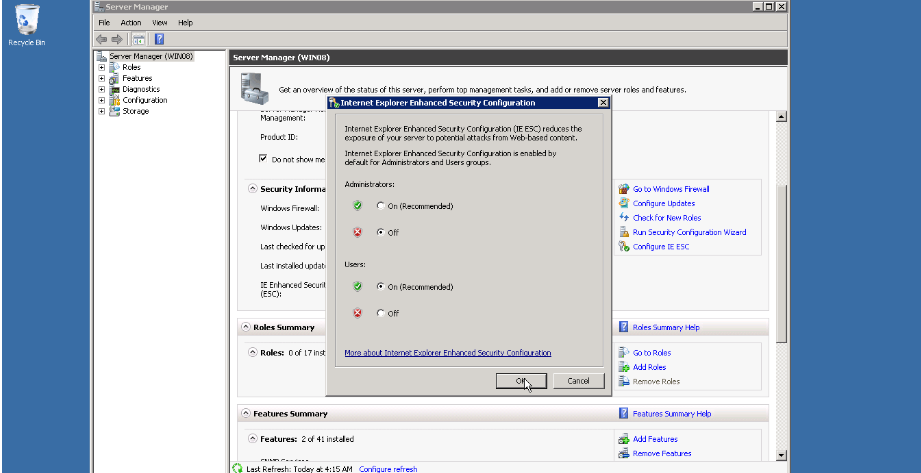
Click the Administrator section’s “Off” button and select OK to open the new window.
The window will close, and you’ll observe that IE Enhanced Security Configuration is now set to Off for the Administrator user.
Close the Server Manager to complete this step. Disabling Enhanced IE Security is all you need for now, and you can always turn it back on later once you’ve finished installing MetaTrader.
Metatrader 5 Installation Guide
The installation process for Metatrader 5 follows the same steps as installing Metatrader 4, with the only difference being the download link for each application. To install Metatrader 4, download it from http://www.metatrader4.com/en/download. For Metatrader 5, use http://www.metatrader5.com/en/download.
Open your Remote Desktop Client and connect to your Windows 2008 VPS server, allowing you to control it remotely from your computer. Afterward, open Internet Explorer and download Metatrader 5 from http://www.metatrader5.com/en/download.
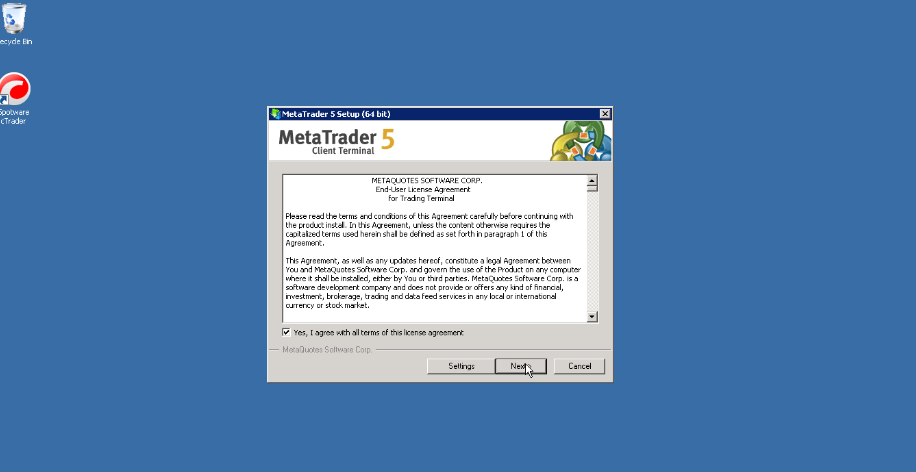
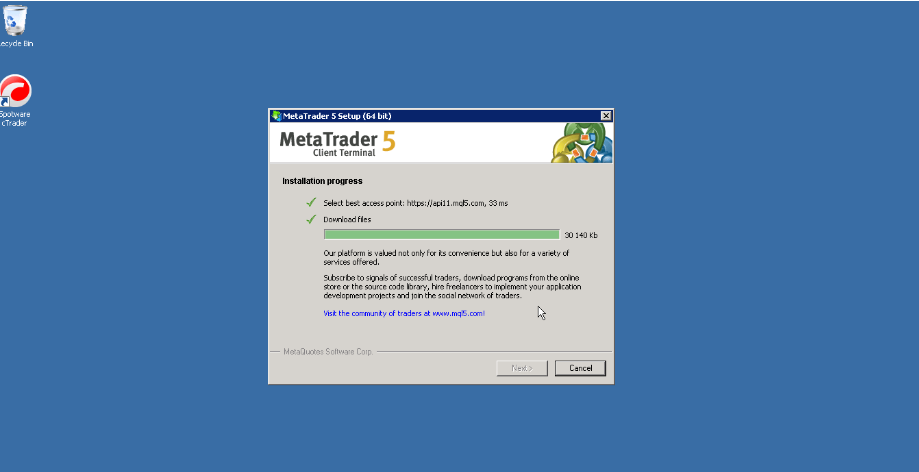
Once you are in the installation window for Metatrader 5, agree to the Terms of License and click Next.
It will proceed to download the file and install the application, which should take only a short amount of time to complete.
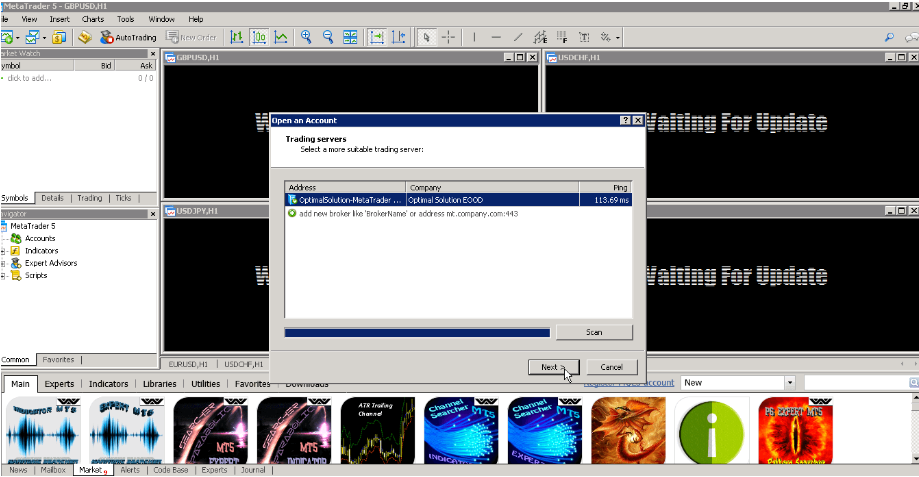
After Metatrader 5 is installed, it will prompt you to open an account. Click **Next** to proceed with opening an account.
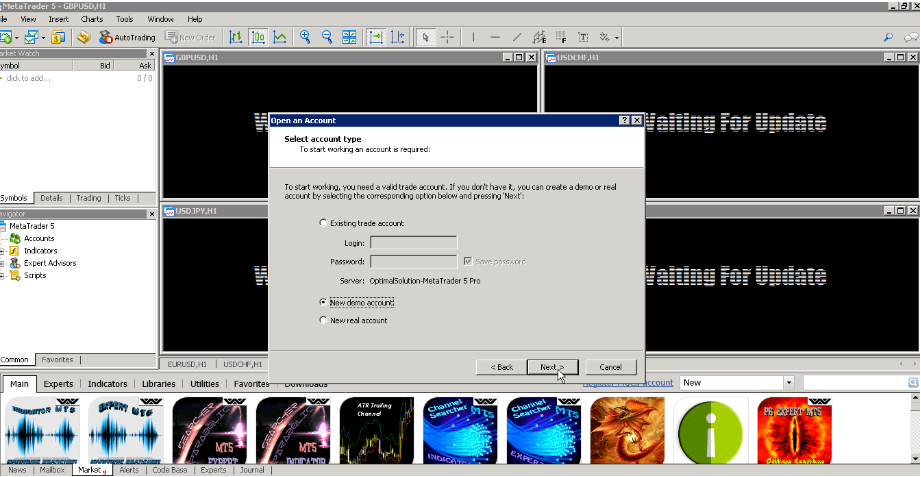
If you wish to create a demo account, select New demo account. For a real trading account, choose New real account. If you want to log in to your existing account, click on Existing trade account and enter your Login and Password.
To open a demo account, enter your name, email, phone number, check the box for I agree to subscribe to your newsletters, and click Next.
Wait for the registration to complete, and after that, you can now initiate a demo trade and become familiar with the software.
That’s all! You have successfully installed Metatrader 5 and can now trade stocks.