You are here:

How to Use Rsync to Synchronise Files and Directories

How to Use Rsync to Synchronise Files and Directories

Overview

Rsync is a versatile open-source utility designed for seamless file transfer and synchronization between hosts. Notably, it serves dual roles as both a server and client. One of its primary applications is automating data backups from a server to a designated backup server, showcasing its robust capabilities in managing file synchronization tasks.

The benefits of rsync usage:

  • Save Bandwidth and Supports Resume

  • Flexibel

  • Fast

  • Easy Setup

Several Fundamental Rsync Command Options:

Options Function
-v, –verbose increase verbosity
-a, –archive archive mode
-r, –recursive recurse into directories
-u, –update skip files that are newer on the receiver
-e, –rsh=COMMAND specify the remote shell to use
-z, –compress compress file data during the transfer
-h, –human-readable output numbers in a human-readable format

Requirements

Prerequisites for the Tutorial:

  • Ensure you have two hosts set up in your local environment or utilize blendhosting.com[1].

For this tutorial, we will be using blendhosting.com[2] to create two hosts, both running the Ubuntu operating system. However, you can adapt these instructions for other distributions like CentOS, Fedora, Debian, etc.

Rsync Installation Guide

Installing Rsync is as simple as typing the command:

for Debian / Ubuntu

root@host-ubuntu:~# apt-get install rsync

for Fedora / CentOS / Scientific

root@host-centos:~# yum install rsync

That’s it! Rsync is now installed on your server.

File and Directory Synchronisation on the Local Server

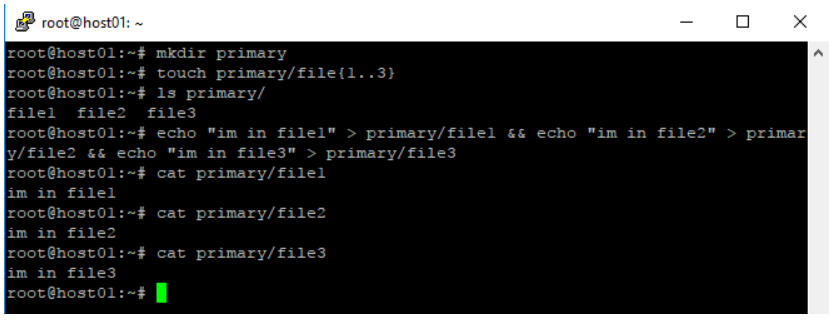
To create the “primary” folder and files (file1, file2, file3) in the terminal, you can use the following commands:

root@host01:~# mkdir primary
root@host01:~# touch primary/file{1..3}

To check the created folder and files and then fill the files with text, you can use the following commands:

root@host01:~# ls primary/
root@host01:~# echo "im in file1" > primary/file1 && echo "im in file2" > primary/file2 && echo "im in file3" > primary/file3
root@host01:~# cat primary/file1
root@host01:~# cat primary/file2
root@host01:~# cat primary/file3
Creating 'primary' folder with files on the local server.

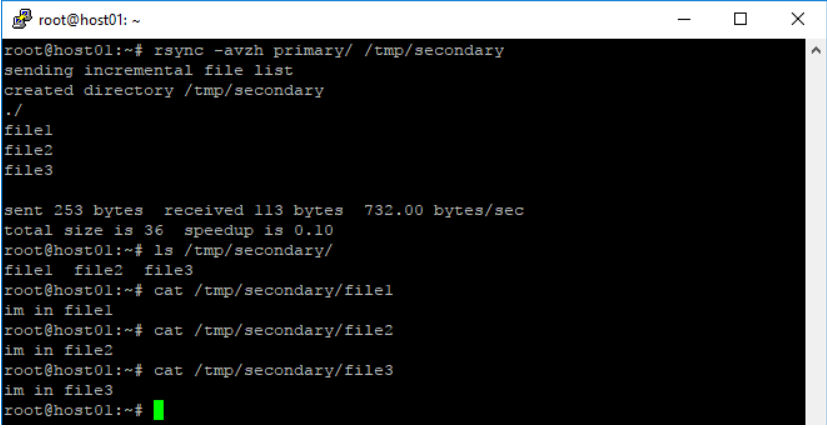
To sync the “primary” folder from /root/primary/ to /tmp/secondary/ using rsync, you can use the following command:

root@host01:~# rsync -avzh primary/ /tmp/secondary

To check the synchronized files in the “/tmp/secondary/” directory, you can use the following commands:

root@host01:~# ls /tmp/secondary/ root@host01:~# cat /tmp/secondary/file1 root@host01:~# cat /tmp/secondary/file2 root@host01:~# cat /tmp/secondary/file3

john@locahost:~$ sudo apt-get install nodejs nodejs-legacy Reading package list… Done Building dependency tree Reading state information… Done


Executing rsync command to sync 'primary' folder

Synchronize Files and Directories from Local to Remote Server Using rsync

To sync the “primary” folder from host01 to the “secondary” folder on host02, you can use rsync along with SSH. Here’s an example command:

root@host01:~# rsync -avz primary/ root@185.144.157.99:/tmp/secondary/

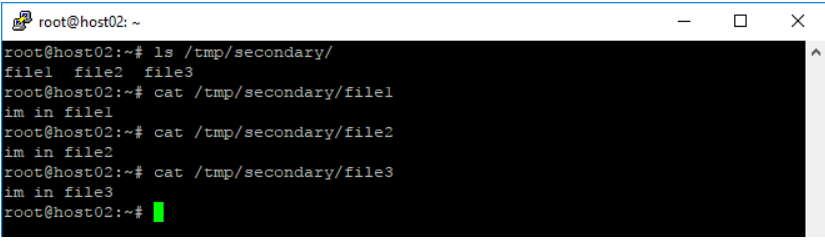
To check the synchronized files on host02, you can use the following commands:

root@host02:~# ls /tmp/secondary/
root@host02:~# cat /tmp/secondary/file1
root@host02:~# cat /tmp/secondary/file2
root@host02:~# cat /tmp/secondary/file3
Sync Files from Local to Remote Server with rsync over SSH

Synchronize Files and Directories from a Remote Server to a Local Server Using rsync over SSH

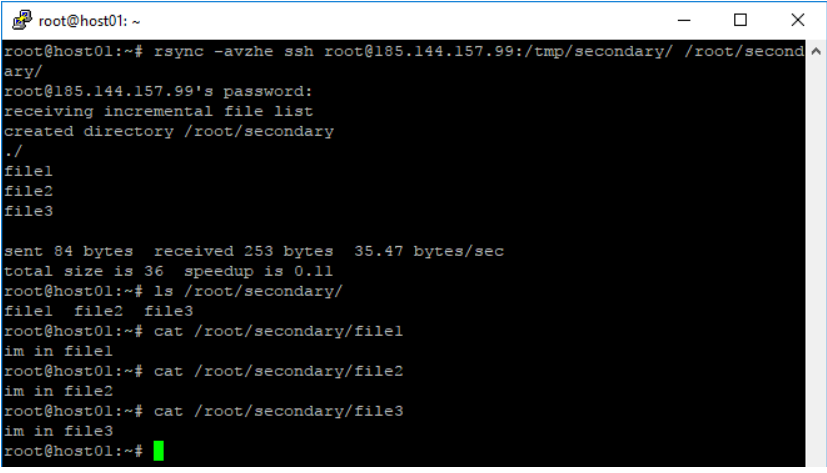
To sync the “secondary” folder from host02 to the “primary” folder on host01, you can use a similar rsync command. Here’s an example:

root@host01:~# rsync -avzhe ssh root@185.144.157.99:/tmp/secondary/ /root/secondary/

 To check the synchronized files in the “primary” folder on host01 after syncing from host02, you can use the following commands:

root@host01:~# ls /root/secondary/
root@host01:~# cat /root/secondary/file1
root@host01:~# cat /root/secondary/file2
root@host01:~# cat /root/secondary/file3
Sync Files from Remote to Local Server with rsync over SSH

Synchronize Files and Directories from a Local Server to a Remote Server Using rsync over SSH

To sync the “primary” folder from host01 to the “secondary” folder on host02 using SSH, you can use the following rsync command:

root@host01:~# rsync -avzhe ssh primary/ root@185.144.157.99:/home/secondary

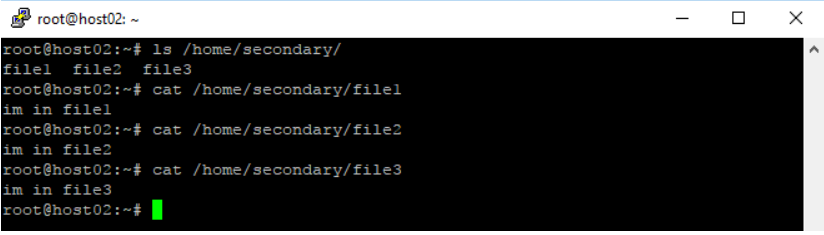
 To check the synchronized files in the “secondary” folder on host02 after syncing from host01 via SSH, you can use the following commands:

root@host02:~# ls /home/secondary/
root@host02:~# cat /home/secondary/file1
root@host02:~# cat /home/secondary/file2
root@host02:~# cat /home/secondary/file3
Sync Files from Local to Remote Server with rsync over SSH

Display Status While Files and Directories Are Synchronised

If you want to show progress while synchronizing files/directories from host01 to host02 using rsync, you can add the –progress option. The modified command would look like this:

root@host01:~# rsync -avzhe ssh --progress primary/ root@185.144.157.99:/root/secondary
Showing Progress during Rsync Synchronization

Limit the Bandwidth

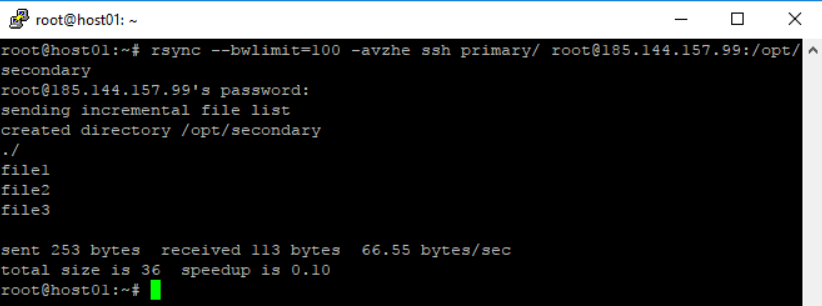
If you want to limit the bandwidth usage during the synchronization process, you can use the –bwlimit parameter.

root@host01:~# rsync --bwlimit=100 -avzhe ssh primary/ root@185.144.157.99:/opt/secondary
Limiting Rsync Bandwidth

That’s it for the installation and basic operations of Rsync. I trust this tutorial has provided a clear understanding of Rsync. If you come across any bugs or find errors in the documentation, please leave your comments below. Your feedback is valuable!


[1]: https://www.blendhosting.com/
[2]: https://www.blendhosting.com/

Was this article helpful?
Dislike 0