How to Install TeamSpeak on a Linux System
Overview
TeamSpeak is a Voice over Internet Protocol (VoIP) software used by players of online games for communication. Whether you’re playing first-person shooters (FPS), online RPGs, MMORPGs, or other online games, having a Voice over IP software is essential. It allows for direct communication, making it easier to interact with other players without the need to type messages.
Requirements
These are the prerequisites before starting the tutorial:
- Set up a host for the TeamSpeak Server in your local environment, or you can use a VPS server [1].
- Install an SSH client; you can download it here [2].
- Have credentials for accessing the server using the SSH client.
Installation
- Updating and Upgrading Ubuntu Server
root@host-ubuntu:~# sudo apt-get update && sudo apt-get -y upgrade
- Create New User
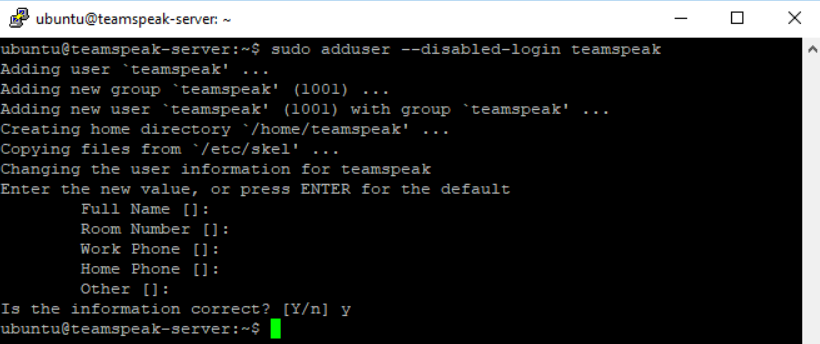
Use the option ‘-disabled-login’ to limit the permissions of the new user. In this case, the ‘teamspeak’ user won’t be able to log in to the system, which is created for security reasons.
root@host-ubuntu:~# sudo adduser --disabled-login teamspeak
- Download TeamSpeak server
Download the TeamSpeak package from its website and customize it with the server specifications. The provided download link is for the latest TeamSpeak version; if there’s a newer version available, you can replace it.
root@host-ubuntu:~# wget http://dl.4players.de/ts/releases/3.12.1/teamspeak3-server_linux_amd64-3.12.1.tar.bz2
Next, extract the downloaded package.
root@host-ubuntu:~# tar -jxvf teamspeak3-server_linux_amd*.tar.bz2
- Move Files and Set Permissions
To move the extracted TeamSpeak file to the user directory, execute the following command:
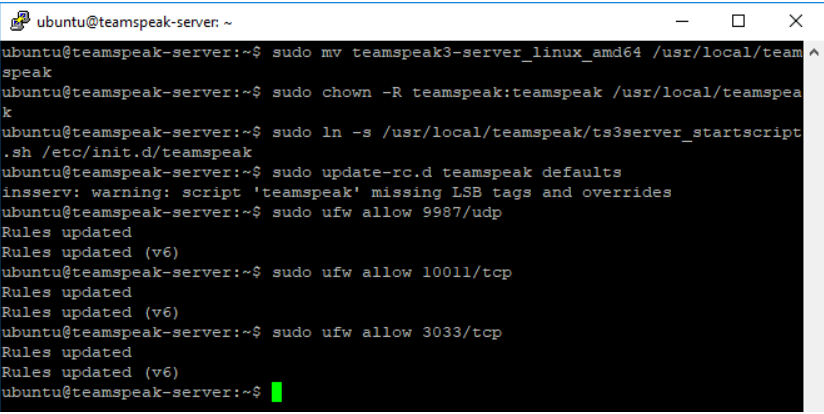
root@host-ubuntu:~# sudo mv teamspeak3-server_linux_amd64 /usr/local/teamspeak
Change the owner of the directory to the ‘teamspeak’ user.
root@host-ubuntu:~# sudo chown -R teamspeak:teamspeak /usr/local/teamspeak
Create a symbolic link for the ‘ts3server_startscript.sh’ file in the ‘/etc/init.d/teamspeak’ directory.
root@host-ubuntu:~# sudo ln -s /usr/local/teamspeak/ts3server_startscript.sh /etc/init.d/teamspeak
Next, we will configure TeamSpeak to run automatically after the system boots.
root@host-ubuntu:~# sudo update-rc.d teamspeak defaults
Afterward, create some firewall rules.
root@host-ubuntu:~# sudo ufw allow 9987/udp
root@host-ubuntu:~# sudo ufw allow 10011/tcp
root@host-ubuntu:~# sudo ufw allow 3033/tcp

- Start and Run the TeamSpeak Server
Once you are finished, save the file and close the editor. Now, activate the script so that it starts on boot. Check that the ‘ts3server_startscript.sh’ file is linked to the ‘/etc/init.d/teamspeak’ directory.
root@host-ubuntu:~# sudo service teamspeak start
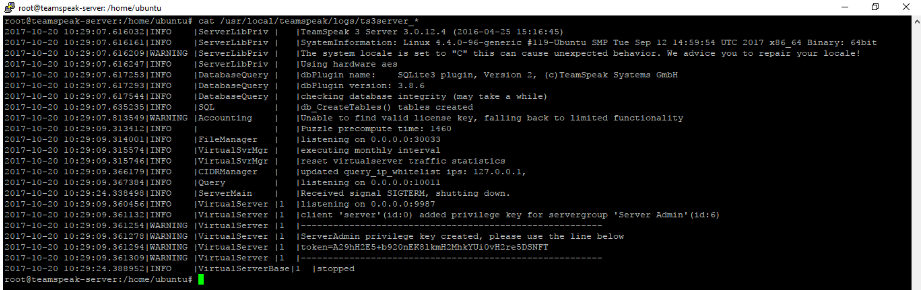
When you initially attempt to connect to your TeamSpeak server, you may be prompted to use a privilege key. This key allows for the administration of your TeamSpeak server. To obtain this privilege key, use the following command:
root@host-ubuntu:~# cat /usr/local/teamspeak/logs/ts3server_*
You will see output similar to the following:
Don’t forget to copy the token at the bottom; you’ll need it for client privilege key access.
Using TeamSpeak Client: A Guide
Downloading and Installing TeamSpeak Client
First, download TeamSpeak Client 32-bit [3] or TeamSpeak Client 64-bit [4]. Then, install TeamSpeak Client on your Windows OS. If you are using another OS (macOS, Linux), you can download TeamSpeak Client [5].
Configure the Windows TeamSpeak Client
After launching the installed TeamSpeak Client, you will be prompted, as usual, to read and approve the disclaimer.
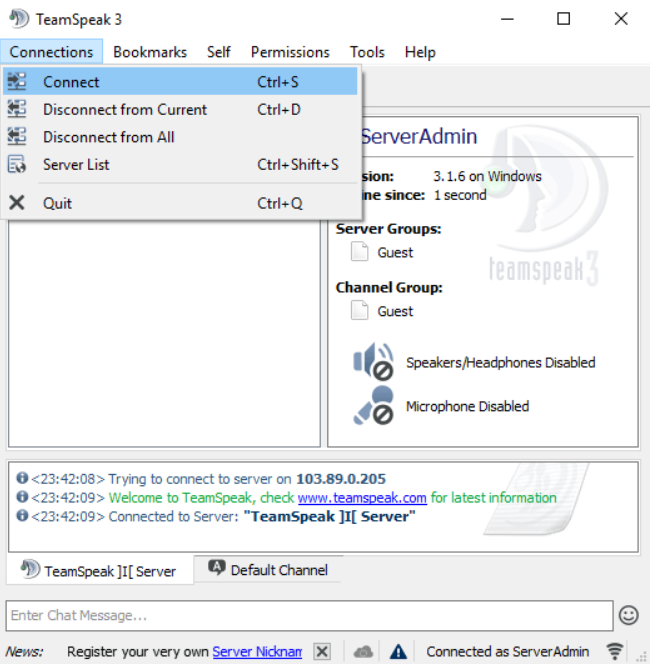
- Navigate to ‘Connection‘ and select ‘Connect‘ in the TeamSpeak Client to establish a connection to the TeamSpeak Server.
- Enter the Server Nickname or Address and your Nickname. In this tutorial, my TeamSpeak Server address is 103.89.0.205, and the Nickname is ServerAdmin
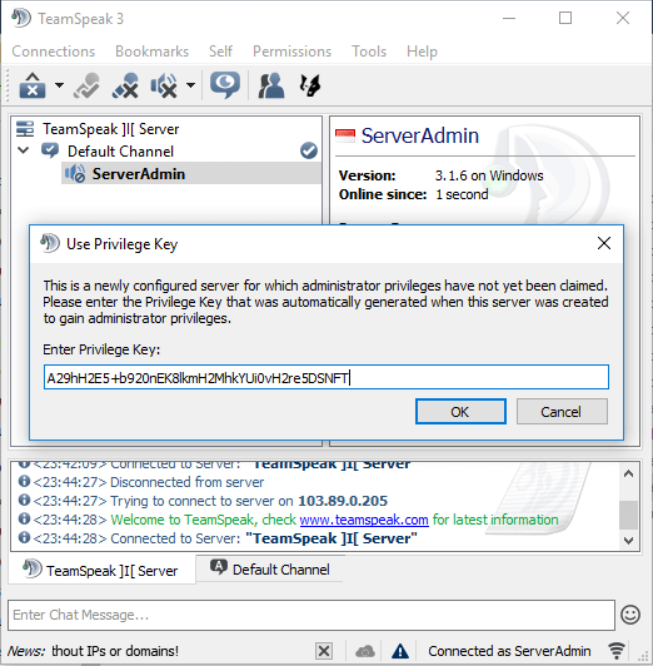
- After that, the ‘Privilege Key‘ tab will appear. Copy and paste your privilege key from the TeamSpeak Server to the TeamSpeak Client.
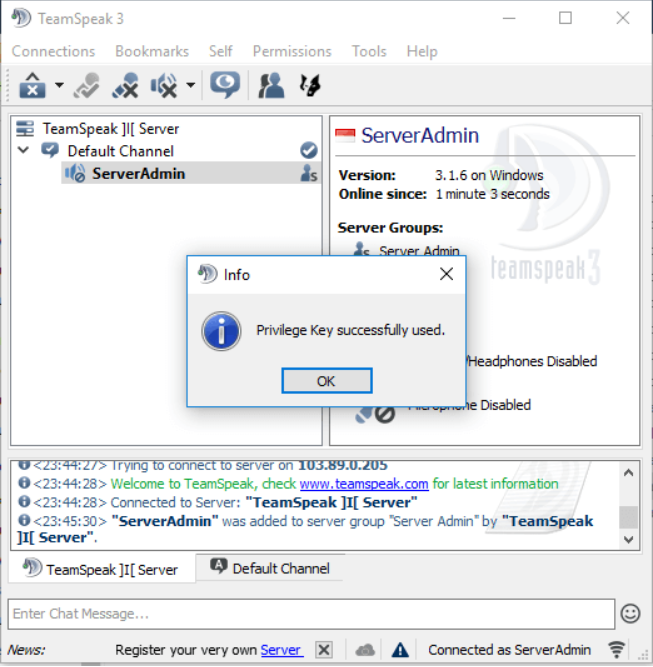
- Ensure that you copy the correct privilege key. If it works, you should see a result similar to the image below.
After successfully connecting from the Client to the Server, you need to set up several things:
- Choose a nickname.
- Set up the microphone you are using.
- Test your microphone.
- Select plug-ins.
- Choose a sound pack for notifications.
- Specify keyboard hotkeys.
Once all of this is done, you can share the server address with the friends you want to communicate with and start communicating.
This concludes the tutorial. I hope you can understand how to create a TeamSpeak Server and use the TeamSpeak Client. If you encounter any bugs or find documentation errors, please leave a comment below.
[1]: https://www.blendhosting.com/
[2]: https://www.chiark.greenend.org.uk/~sgtatham/putty/latest.html
[3]: http://dl.4players.de/ts/releases/3.1.6/TeamSpeak3-Client-win32-3.1.6.exe
[4]: http://dl.4players.de/ts/releases/3.1.6/TeamSpeak3-Client-win64-3.1.6.exe
[5]: https://www.teamspeak.com/en/downloads/