


Setting Up Nginx on Debian 10: A Step-by-Step Guide
BBefore starting, ensure you have a non-root user with sudo on your server. Log in with that user, update the package index for the latest listings, and then install Nginx using apt from Debian’s default repository.
Step 1 – Installing Nginx Since Nginx is accessible in Debian’s default repo, it is conceivable to introduce it from these repo utilizing the apt packaging system. Since this is our first interaction with the apt packaging system in this session, we will update our local package index so that we have access to the most recent package listings. Afterwards, we can install nginx:
sudo apt update sudo apt install nginx
Step 2 – Adjusting the Firewall Before checking Nginx, adjust the firewall to permit access to the service. Nginx registers itself as a service with ufw during installation, simplifying access allowance. View the application configurations recognized by ufw by entering:
sudo ufw app list
You will see this
Output Available applications:Nginx Full Ngix HTTP Nginx
HTTPS OpenSSH
For optimal security, enable the most restrictive profile that permits the configured traffic. Since SSL hasn’t been set up on our server in this guide, simply open access for traffic on port 80.
You can enable this by typing:
sudo ufw allow ‘Nginx HTTP’
You can verify the change by typing
sudo ufw status
You should see HTTP traffic allowed in the displayed output:
Open Status : active
To Action From — —— —- OpenSSH ALLOW Anywhere Nginx HTTP
ALLOW Anywhere OpenSSH (v6)
ALLOW Anywhere (v6) Nginx HTTP (v6)
ALLOW Anywhere (v6)
Step 3 – Verify your web server for enabling traffic on port 80.
Once the installation is complete, your web server should be up and running.
Output nginx.service – A high performance web server and a reverse proxy server
Loaded:loaded(/lib/systemd/system/nginx.service; enabled; vendor preset: enabled) Active: active(running)since Fri
2018-04-20 16:08:19 UTC; 3 days ago Docs: man:nginx(8) Main PID: 2369 (nginx) Tasks: 2 (limit: 1153) CGroup
: /system.slice/nginx.service: master process /usr/sbin/nginx -g daemon on; master_process on;└─ nginx: worker
process.
As evident from above, the service seems to have started effectively. However, the most reliable method to test this is to actually request a page from Nginx.
To confirm that the software is running properly, you can access the default Nginx landing page by navigating to your server’s IP address. If you’re unsure about your server’s IP address, there are a few different ways to retrieve it.
Give it a shot by entering this command at your server’s prompt
ip addr show eth0|grep inet|awk ‘[print $2;]|sed’s/\/.*$//’
After executing the command, you’ll receive several lines. Test each one in your web browser to ensure they are functioning correctly.
When you have your server’s IP address, enter it into your web browser’s address bar to access the site.
http://your_server_ip You should see the default Nginx landing page.
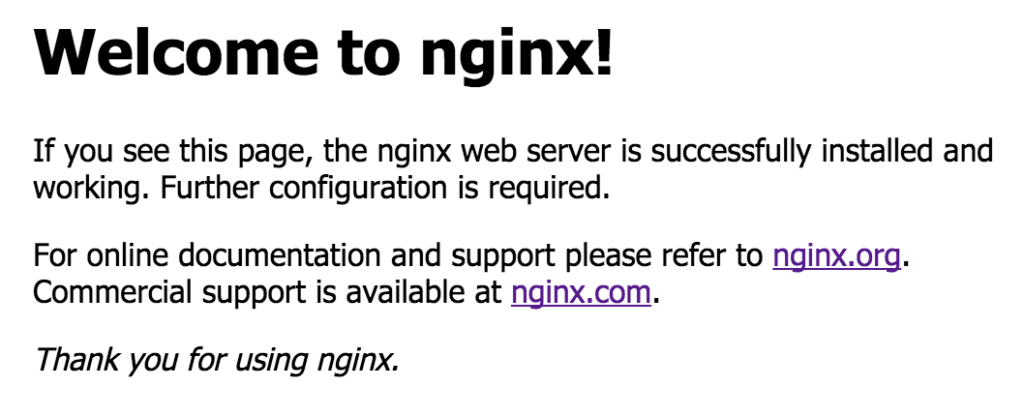
Step 4 – Managing the Nginx Process Now that your web server is operational, let’s explore some fundamental management commands.
To stop your web server, type:
sudo systemctl stop nginx
To start the web server whe
n it is stopped, type:
sudo systemctl start nginx
To stop and then start the service again, type:
sudo systemctl restart nginx
If you are simply making configuration changes, Nginx can often reload without dropping connections. To do this, type:
sudo systemctl reload nginx
Thank you.