

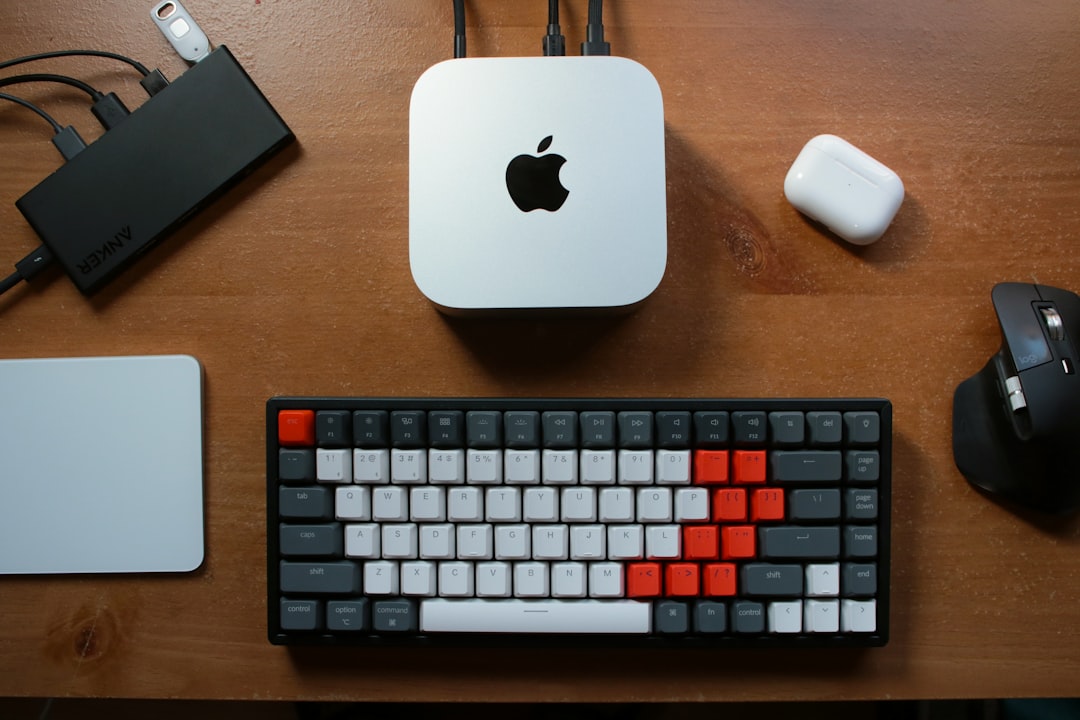

Remote access allows developers to manage a Mac Mini without sitting in front of the physical machine. This setup is useful for iOS development, software testing, application deployment, and server maintenance. Cloud Mac Mini SSH access provides a secure way to manage files and run commands from another computer. VNC offers a graphical desktop for tasks that require a screen, mouse, and keyboard.
Both methods support remote work, but each has different security requirements. Proper configuration helps protect project files, login details, and development environments. Understanding the differences between SSH and VNC is an important step toward safer remote Mac management.
1. Understanding SSH and VNC Connections
SSH stands for Secure Shell. It creates an encrypted connection between a client computer and a remote Mac. Developers can use SSH to execute commands, transfer files, manage services, and perform maintenance without opening a graphical desktop. Cloud Mac Mini SSH access is especially useful for automated development tasks and command-line operations.
VNC stands for Virtual Network Computing. It allows a remote user to view and control a Mac desktop through a compatible application. This method is helpful when configuring software, opening Xcode, checking application settings, or troubleshooting graphical tools.
Cloud Mac Mini SSH is generally suitable for terminal-based work. VNC is more appropriate for visual tasks. Both methods should use controlled access and secure network settings to reduce unnecessary risks.
2. Prepare the Cloud Mac Mini for Remote Access
Before connecting, confirm that the cloud provider has supplied the correct IP address or hostname, login account, and access instructions. Check that the Mac is running and that the required remote access services are available.
For Cloud Mac Mini SSH, Remote Login must be enabled in macOS. Open System Settings, select General, and choose Sharing. Enable Remote Login and restrict access to approved user accounts.
For VNC, enable Screen Sharing or the supported remote management service. Select approved users and configure the required authentication settings. Avoid granting access to every account when only a small development team needs remote control. Apple provides an official guide on allowing a remote computer to access a Mac, including the settings required for remote connections.
A reliable Cloud Mac Mini SSH setup also requires checking the provider’s firewall rules. Only the necessary connection ports should be available. Unused remote services should remain disabled.
3. Connect Securely Through SSH
SSH is a practical option for managing a remote Mac from macOS, Linux, or Windows. A compatible terminal or SSH client can establish the connection using the supplied account details.
Open the terminal application and enter the SSH connection command using the assigned username and hostname. Confirm the server identity when prompted. Enter the required authentication details to complete the connection.
After login, basic commands can check the current directory, inspect available files, and confirm that the session is working. Cloud Mac Mini SSH connections can also support controlled file transfers and routine maintenance.
For stronger protection, use SSH key authentication where supported. A private key should remain on the authorized client computer and must never be shared publicly. A passphrase adds another layer of protection if the key file is copied or exposed.
Avoid accepting unexpected server identity changes without checking the reason. An unfamiliar fingerprint can indicate a server replacement or a possible security issue. Verify changes with the hosting provider before continuing.
4. Configure VNC for Remote Desktop Access
VNC provides a graphical connection for tasks that cannot be completed conveniently through a terminal. Install a trusted VNC client on the local computer and obtain the correct remote address from the hosting provider.
Enable the appropriate screen-sharing service on the Mac. Configure a strong, unique VNC password and limit access to approved users. Never reuse the main macOS account password for VNC authentication.
A secure Cloud Mac Mini SSH configuration can complement VNC by providing a separate encrypted administration channel. However, SSH does not automatically make a direct VNC connection secure. VNC traffic may lack adequate encryption, depending on the client and server configuration.
For safer access, use a VPN or an SSH tunnel when supported by the provider and client software. This arrangement can protect VNC traffic while avoiding direct exposure of the remote desktop service to the public internet.
5. Protect Credentials and Network Access
Strong authentication is essential for every remote connection. Use unique passwords, SSH keys, and multi-factor authentication wherever supported. Remove inactive accounts and review access permissions regularly.
For Cloud Mac Mini SSH, avoid sharing private keys through email, public repositories, or unsecured messaging platforms. Store credentials in an appropriate password manager or secure key storage system.
Firewall rules should allow only necessary connections from trusted sources whenever possible. Restrict SSH access to approved IP addresses if the hosting service supports this feature. Avoid exposing VNC directly to the public internet.
Developers handling private source code or confidential project files should also review data protection practices. The Blend Hosting guide to data privacy and local AI hosting provides related information about protecting workloads and sensitive information in hosted environments.
6. Common Connection Problems and Solutions
Connection failures can occur because of incorrect credentials, disabled services, firewall restrictions, or network problems. Check the hostname and username first. Confirm that the remote Mac is online and the required service is enabled.
If Cloud Mac Mini SSH fails to connect, verify that the SSH port is reachable and that the hosting provider permits access from the current network. An authentication error may require checking the selected account or SSH key permissions.
For VNC problems, confirm that the screen-sharing service is active and that the client supports the configured connection method. A blank screen may result from a display session issue or an incorrect remote desktop setting.
Avoid disabling security controls simply to restore access. Review connection logs and provider instructions before making configuration changes.
7. Maintain a Secure Remote Access Routine
Security requires regular attention after the initial setup. Install supported macOS security updates and keep remote access applications current. Review account permissions whenever team membership or project responsibilities change.
A well-maintained Cloud Mac Mini SSH environment should include periodic checks of login activity, firewall settings, and authentication methods. Remove unused SSH keys and change credentials immediately when unauthorized exposure is suspected.
Use separate accounts for administration and everyday development when practical. Limit administrator privileges to tasks that require elevated access. Back up important project files and test recovery procedures to reduce the impact of accidental deletion or system failure.
For Cloud Mac Mini SSH deployments used in continuous integration pipelines, automate only approved tasks and protect deployment credentials. Logs should provide enough information to investigate unusual activity without exposing passwords, private keys, or sensitive application data.
Conclusion
SSH and VNC provide different ways to manage a cloud-hosted Mac Mini. SSH supports encrypted command-line administration, while VNC provides graphical desktop control. Choosing the appropriate method improves efficiency and makes remote development easier to manage.
A secure Cloud Mac Mini SSH setup depends on strong authentication, limited network exposure, controlled user permissions, and regular maintenance. VNC should receive equal attention because graphical access can expose files, applications, and sensitive information. Combining careful configuration with routine security checks helps create a reliable environment for remote development and long-term Mac hosting.