

Setting up Zabbix on Ubuntu 20.04
Introduction
What is Zabbix?
Zabbix is a high-quality open-source monitoring solution designed for enterprise use. It is capable of overseeing a wide range of network parameters, ensuring the well-being and reliability of servers, virtual machines, applications, services, databases, websites, the cloud, and beyond. Additionally, Zabbix allows users to set up email alerts for virtually any event, facilitating prompt responses to server issues. With robust reporting and data visualization features, Zabbix proves ideal for capacity planning.
Installing Zabbix
Step 1
Prerequisites
Upon accessing your server, it is essential to upgrade to the most recent available packages.
apt-get update -y
Step 2
Setting up LAMP Server
To begin, we must install Apache, MariaDB, PHP, and additional required extensions.
apt-get install apache2 libapache2-mod-php mariadb-server php php-mbstring php-gd php-xml php-bcmath php-ldap php-mysql unzip curl gnupg2 -y
After installing all the packages, it’s necessary to modify the php.ini file by making certain adjustments.
nano /etc/php/7.4/apache2/php.ini
Modify the following settings according to your preferences, or you can opt for the same configurations as provided in the example.
memory_limit 256M
upload_max_filesize 16M
post_max_size 16M
max_execution_time 300
max_input_time 300
max_input_vars 10000
date.timezone = REGION/STATE
Save the file and restart the Apache service.
systemctl restart apache2
The changes will now be applied.
Step 3
Establishing a Database for Zabbix
Next, we must generate a database and user for Zabbix. Initially, log in to the MariaDB shell.
mysql
Now, proceed to create a database and user for Zabbix. Ensure to replace the password with your chosen one, which you’ll be using.
CREATE DATABASE zabbixdb character set utf8 collate utf8_bin;
CREATE USER 'zabbixuser'@'localhost' IDENTIFIED BY 'password';
Subsequently, grant all privileges to the Zabbix database.
GRANT ALL PRIVILEGES ON zabbixdb.* TO 'zabbixuser'@'localhost' WITH GRANT OPTION;
Now flush the privileges and exit MariaDB.
FLUSH PRIVILEGES;
EXIT;
Step 4
Zabbix is not included in the default Ubuntu 20.04 repository, therefore, the repository must be installed initially.
wget https://repo.zabbix.com/zabbix/5.0/ubuntu/pool/main/z/zabbix-release/zabbix-release_5.0-1+focal_all.deb
dpkg -i zabbix-release_5.0-1+focal_all.deb
Now, update the repository and proceed to install the Zabbix server.
apt-get update -y
apt-get install zabbix-server-mysql zabbix-agent zabbix-frontend-php zabbix-apache-conf -y
After all the packages are installed we need to start the Zabbix service. We will also enable the service to start after a reboot.
systemctl start zabbix-server
systemctl enable zabbix-server
Now we need to import the Zabbix database schema. You will need to enter the password created earlier.
cd /usr/share/doc/zabbix-server-mysql
zcat create.sql.gz | mysql -u zabbixuser -p zabbixdb
The zcat command may take several minutes to complete.
nano /etc/zabbix/zabbix_server.conf
Modify the following lines, ensuring to enter the password you created earlier. Uncomment (#) DBHost and DBPassword.
DBHost=localhost
DBName=zabbixdb
DBUser=zabbixuser
DBPassword=password
Save and close the file. Subsequently, restart both the Apache and Zabbix services.
systemctl restart zabbix-server
systemctl restart apache2
Step 5
Configuring the Zabbix Agent
To configure the Zabbix agent on our system, edit the zabbix_agentd.conf file.
nano /etc/zabbix/zabbix_agentd.conf
Change the following lines.
Server = 127.0.0.1
ServerActive = 127.0.0.1
Hostname = Zabbix Server
Save and close the file, then initiate the Zabbix agent service and enable it to ensure it starts automatically after a system reboot.
systemctl start zabbix-agent
systemctl enable zabbix-agent
Step 6
Access the Zabbix dashboard throught http://YOUR-SERVER-IP/zabbix You will be redirected to the Zabbix welcome page
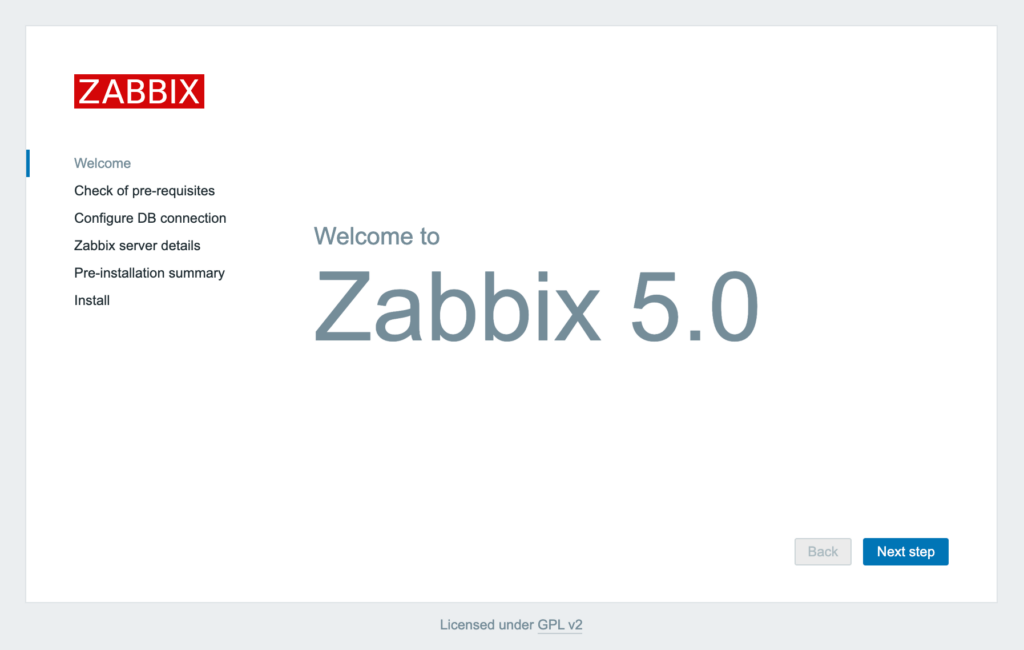
Proceed by clicking on Next. Verify that all the pre-requisites are installed.
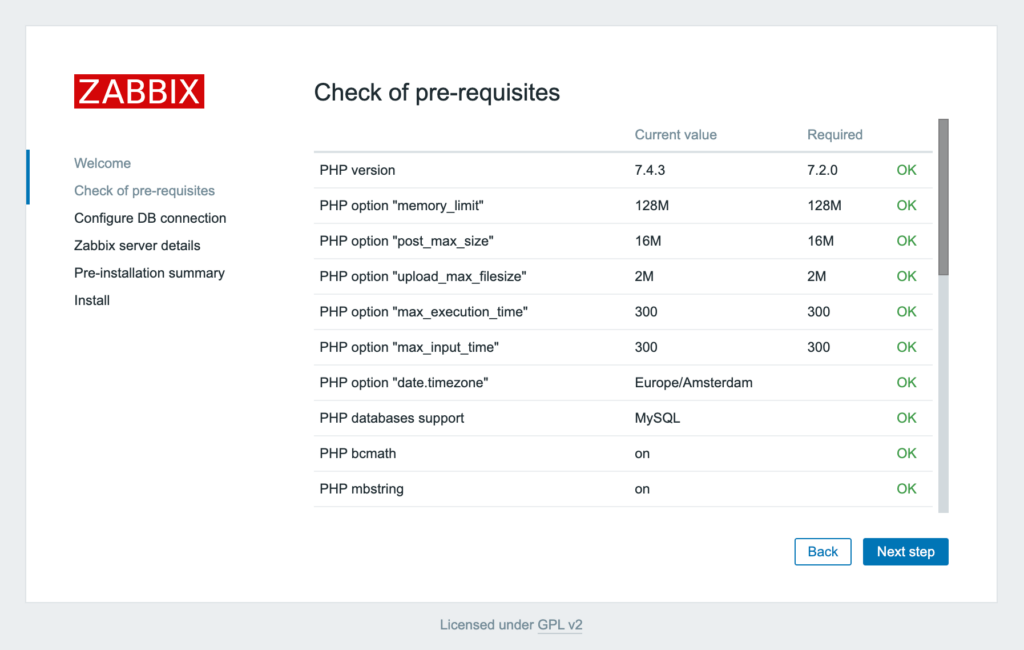
If all prerequisites are installed, click Next. Subsequently, enter the database credentials created earlier.
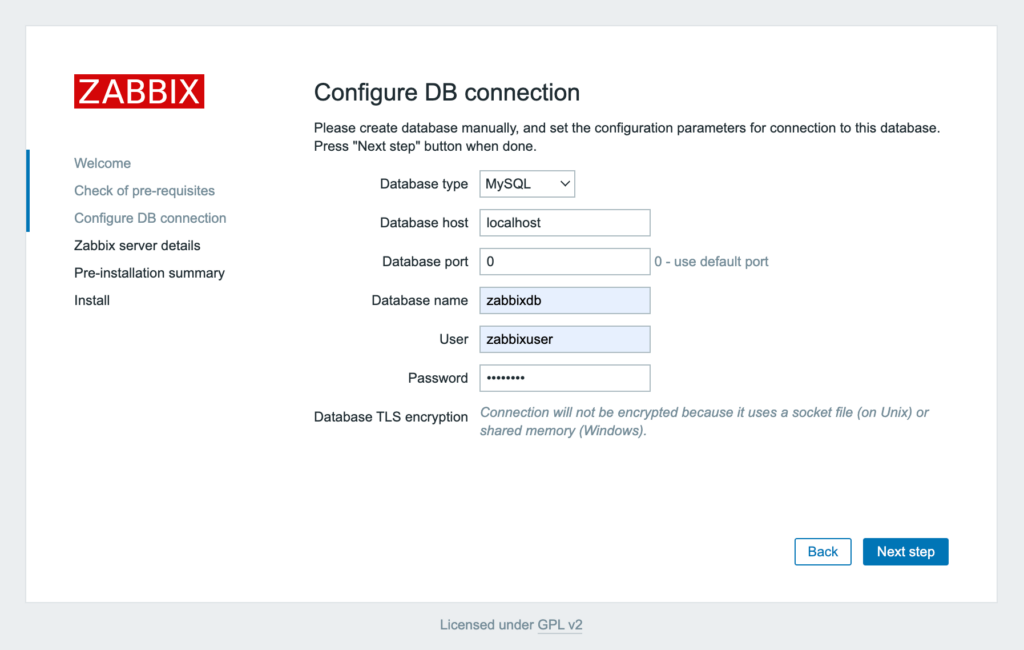
Next, furnish your Zabbix server details. In the provided example, Demo is used as the name.
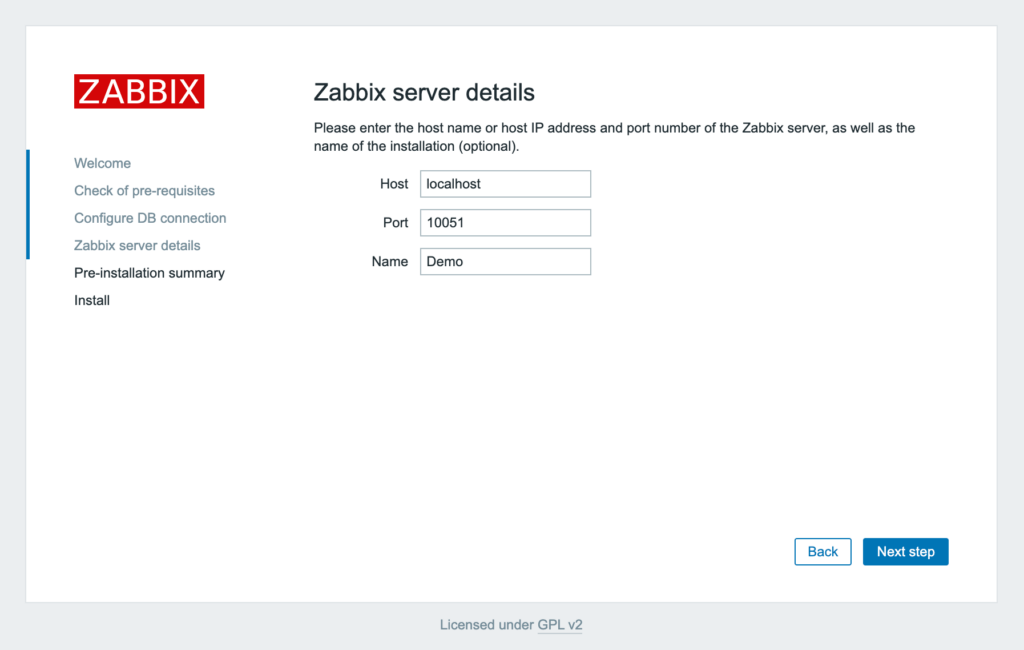
Proceed to confirm the configuration.
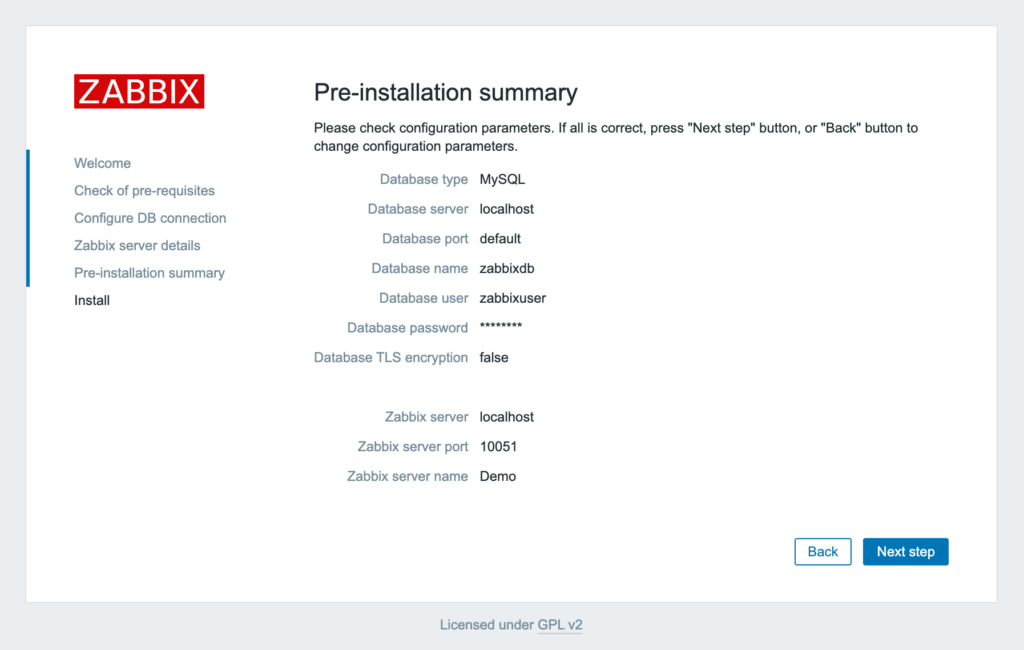
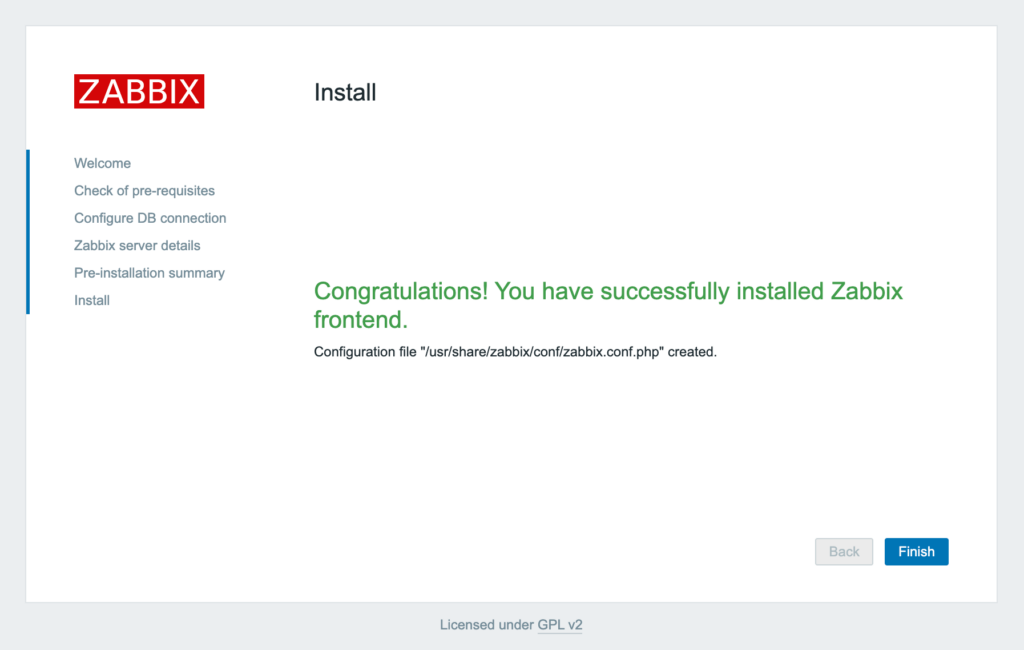
After confirming the configuration, a screen displaying Congratulations! will follow. Click on Finish.
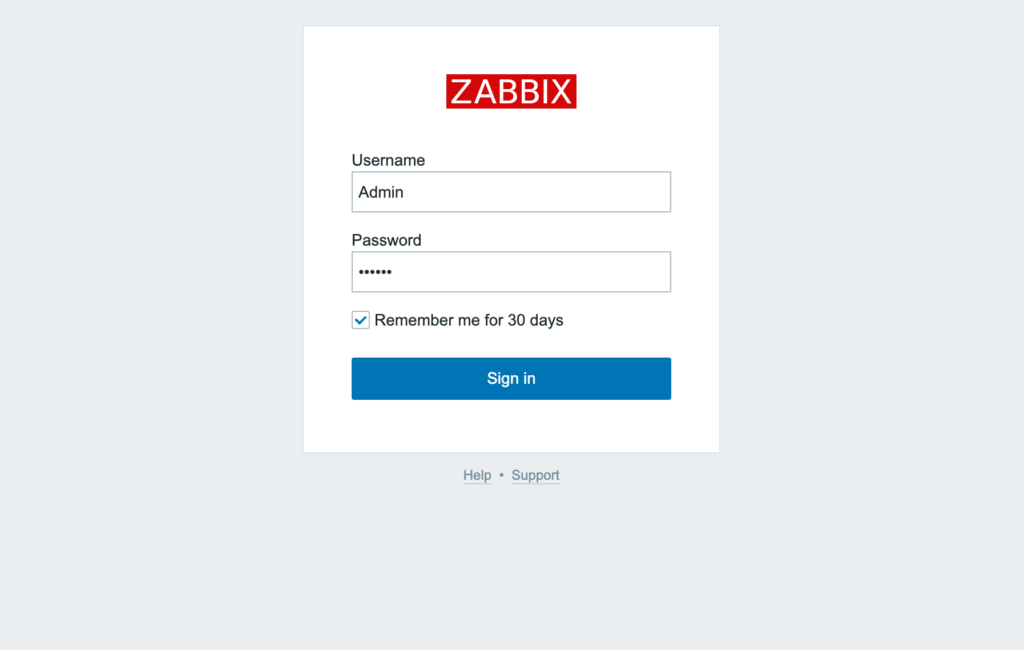
You will be redirected to the Zabbix login page. The default credentials are as follows:
Username = Admin Password = zabbix
Congratulations! You have now successfully installed Zabbix.