MetaTrader, developed by MetaQuotes Software, is a widely used online trading platform for retail exchange traders. It acts as a client interface for brokerage firms’ servers, providing real-time market data, price charts, and order management. The platform is extensible, allowing users to automate trading with scripts and robots. There are two versions: MetaTrader 4 and the latest version, MetaTrader 5, which offers improvements over its predecessor.
Installing MetaTrader on Windows Server 2019. Ensure that we have the capability to retrieve files through Internet Explorer.
Open Internet Explorer. Open the settings menu and select Internet Options
Navigate to the Security section. Opt for the Internet zone. Choose Custom level…
Scroll through the options until you reach Downloads > File Download, then choose Enable. Afterward, click OK.
You will encounter a Warning prompt. Proceed by selecting Yes.
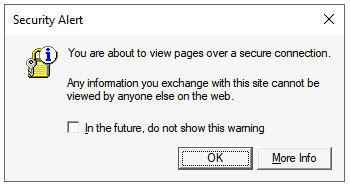
In the event of a Security Alert, simply click OK.
If encountering a Content warning, ensure to check the box for Continue to prompt when website content is blocked, and then click Close.
While on the website, locate and select the prominent green button that reads Download MetaTrader 5 for PC, then proceed to open a demo account.
At the bottom of your screen, a yellow window will appear, inquiring whether to save the file or cancel the download. Opt to click on Save.
Upon completion of the download, a yellow window will reappear, presenting the option to run the downloaded file along with two alternative choices. Be certain to choose Run.
The setup process will commence. On the initial screen, proceed by agreeing to the terms of their license agreement, achieved by selecting Next.
The installation process will initiate.
Wait until the installation is completed. Once finished, click on Finish!



![install MetaTrader on Windows Server 2019.[Open Internet Explorer]](https://www.blendhosting.com/wp-content/uploads/2024/01/install-MetaTrader-on-Windows-Server-2019.Open-Internet-Explorer.png)
![install MetaTrader on Windows Server 2019.[Security Tab]](https://www.blendhosting.com/wp-content/uploads/2024/01/install-MetaTrader-on-Windows-Server-2019.Security-Tab.png)
![install MetaTrader on Windows Server 2019.Configurate step]](https://www.blendhosting.com/wp-content/uploads/2024/01/install-MetaTrader-on-Windows-Server-2019.Configurate-step.png)
![install MetaTrader on Windows Server 2019.Configurate step 2]](https://www.blendhosting.com/wp-content/uploads/2024/01/install-MetaTrader-on-Windows-Server-2019.Configurate-step-2.png)
![install MetaTrader on Windows Server 2019.Configurate step 4]](https://www.blendhosting.com/wp-content/uploads/2024/01/install-MetaTrader-on-Windows-Server-2019.Configurate-step-4.png)
![install MetaTrader on Windows Server 2019.Configurate step 5]](https://www.blendhosting.com/wp-content/uploads/2024/01/install-MetaTrader-on-Windows-Server-2019.Configurate-step-5-1024x704.png)
![install MetaTrader on Windows Server 2019.Configurate step 6]](https://www.blendhosting.com/wp-content/uploads/2024/01/install-MetaTrader-on-Windows-Server-2019.Configurate-step-6-1.png)
![install MetaTrader on Windows Server 2019.Configurate step 7]](https://www.blendhosting.com/wp-content/uploads/2024/01/install-MetaTrader-on-Windows-Server-2019.Configurate-step-7.png)
![install MetaTrader on Windows Server 2019.Configurate step 8]](https://www.blendhosting.com/wp-content/uploads/2024/01/install-MetaTrader-on-Windows-Server-2019.Configurate-step-8.png)
![install MetaTrader on Windows Server 2019.Configurate step 9]](https://www.blendhosting.com/wp-content/uploads/2024/01/install-MetaTrader-on-Windows-Server-2019.Configurate-step-9.png)
![install MetaTrader on Windows Server 2019.Configurate step 10]](https://www.blendhosting.com/wp-content/uploads/2024/01/install-MetaTrader-on-Windows-Server-2019.Configurate-step-10.png)