

How to change Operating System (OS)?
What is Operating System (OS)?
An Operating System (OS) is the core software that runs on a computer or server. It acts as a bridge between the hardware and the user.
In simple terms, the OS allows you to:
- Run applications
- Manage files and storage
- Control hardware (CPU, memory, disk)
- Provide a user interface (CLI or GUI)
Examples of operating systems include Ubuntu, CentOS, and Debian.
Why need an Operating System (OS)?
1. Enables Software Execution
Applications (like web servers, databases, or development tools) need an OS to run.
2. Manages System Resources
The OS handles:
CPU usage
Memory allocation
Disk storage
Network communication
3. Provides Security
Operating systems include:
User access control
File permissions
Security updates
4. Supports Server Operations
For servers, the OS allows you to:
Host websites
Run backend services
Manage cloud infrastructure
Overview of Operating Systems
1. Ubuntu
Key Features:
User-friendly and easy to set up
Large community support
Frequent updates and long-term support
Compatible with most modern software
2. CentOS
Key Features:
High stability and reliability
Based on enterprise-grade systems
Less frequent updates (but more stable)
Strong performance for production systems
3. Debian
Key Features:
Extremely stable and secure
Lightweight and efficient
Huge software repository
Less frequent updates (focus on stability)
Reinstall Operating Systems (OS) Guide
Step 1: Log in to Your VPS Dashboard
Access your account and log in to the VPS management dashboard.
Step 2: Navigate to VPS Management
Locate your VPS instance and scroll down to the VPS Management Control Panel.
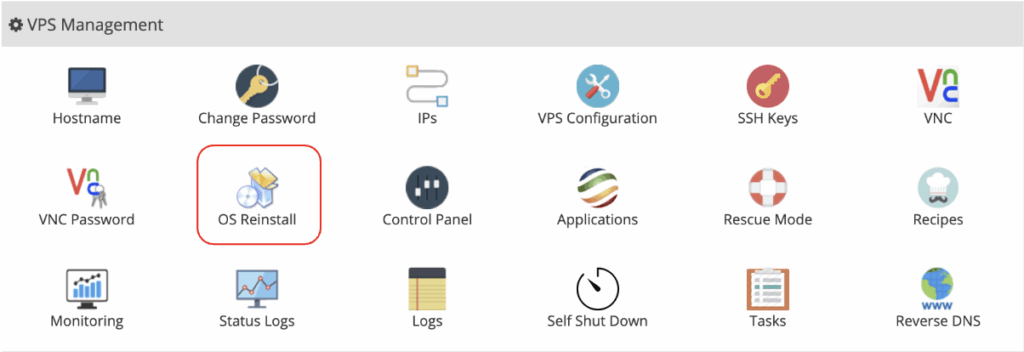
Step 3: Select “OS Reinstall”
Click on the OS Reinstall option to begin the process.
Step 4: Choose Your New Operating System
Select your preferred operating system from the available options. Then, enter a new root password for the server.
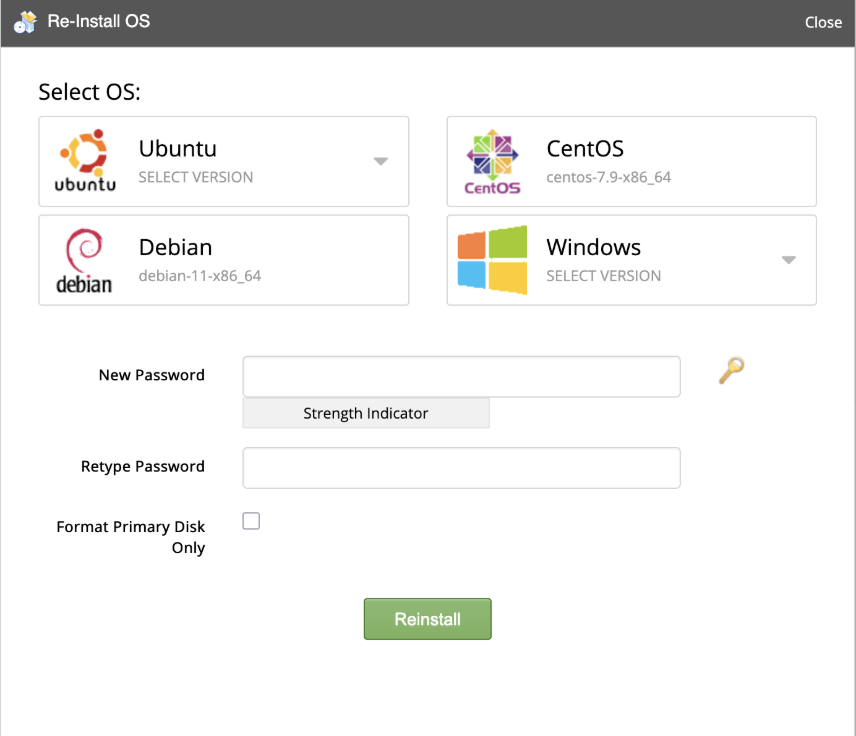
Step 5: Confirm Reinstallation
Click the Reinstall button to proceed.
⏳ Processing Time
The reinstallation process typically takes 5 – 10 minutes to complete.
⚠️ Important Note:
Reinstalling the OS will erase all existing data on the VPS. Please ensure you have backed up any important files before proceeding.
Ready to get started with your VPS?
Explore our VPS solutions and deploy your preferred operating system in minutes with Blend Hosting.
👉 Visit our VPS page to learn more and get started today.